Python - YAMLの解析

YAMLは、インデントを使って階層構造を表現するという特徴をもったデータ形式です。

XMLよりもシンプルなのが特徴です。

PyYAMLをインストール

YAMLを扱うためにPyYAMLというライブラリをインストールします。

1
pip install pyyaml

YAMの解析

果物と値段などの一覧を、文字列にYAML形式で記述しそれをPyYAMLで解析し画面に表示します。

[コード]

1
2
3
4
5
6
7
8
9
10
11
12
13
14
15
16
17
18
19
20
21
22
23
24
25
26
27
28
29
import yaml

str = '''
Date: 2020-04-15
PriceList:
-
item_id: 1
name: Banana
color: yellow
price: 150
-
item_id: 2
name: Orange
color: orange
price: 300
-
item_id: 3
name: Apple
color: red
price: 200
'''
# YAMLを解析
data = yaml.load(str)

print(data['Date'])
print()

for d1 in data['PriceList']:
print(d1)

実行結果は下記の通りです。

[実行結果]

2020-04-15

{'item_id': 1, 'name': 'Banana', 'color': 'yellow', 'price': 150}
{'item_id': 2, 'name': 'Orange', 'color': 'orange', 'price': 300}
{'item_id': 3, 'name': 'Apple', 'color': 'red', 'price': 200}

Python - JSONの解析(百人一首を読む)

JSONの解析を行っていきます。

JSONの解析

以下のページをJSON解析の対象とします。
http://api.aoikujira.com/hyakunin/get.php?fmt=json

百人一首APIを使って、JSON形式で百人一首をダウンロードしランダムに歌を3首表示します。

[コード]

1
2
3
4
5
6
7
8
9
10
11
12
13
14
15
16
17
import urllib.request as req
import os.path, random
import json

# JSONをダウンロード
url = 'http://api.aoikujira.com/hyakunin/get.php?fmt=json'
savename = 'hyakunin.json'
if not os.path.exists(savename):
req.urlretrieve(url, savename)

# JSONファイルを解析
data = json.load(open(savename, 'r', encoding='utf-8'))

# ランダムに一首表示
for i in range(3):
r = random.choice(data)
print(r['kami'], r['simo'],)

実行結果は下記の通りです。

[実行結果]

恋すてふ 我が名はまだき 立ちにけり 人しれずこそ 思ひそめしか
田子の浦に うちいでてみれば 白妙の 富士の高嶺に 雪は降りつつ
あはれとも いふべき人は 思ほえで 身のいたづらに なりぬべきかな

Python - XMLの解析(地域防災拠点データを読む)

BeautifulSoupを使ってXMLの解析を行っていきます。

XMLの解析

以下のページをXML解析の対象とします。
http://archive.city.yokohama.lg.jp/somu/org/kikikanri/data/shelter.xml

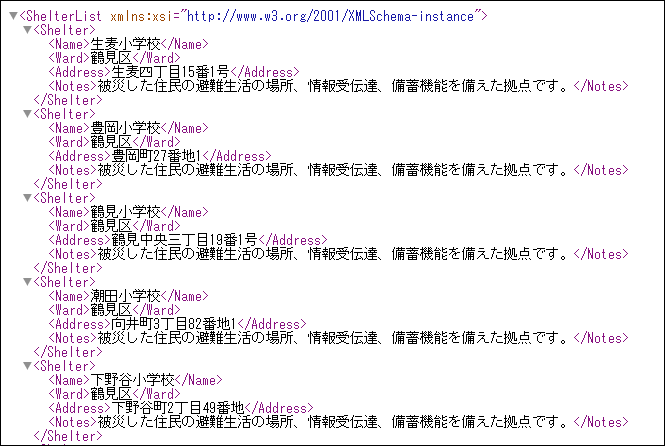
shelter.xml(一部略)

このページで公開されているXML形式の地域防災拠点データを読み込んで、区ごとに防災拠点の名前一覧を出力します。

[コード]

1
2
3
4
5
6
7
8
9
10
11
12
13
14
15
16
17
18
19
20
21
22
23
24
25
26
27
28
29
30
from bs4 import BeautifulSoup
import urllib.request as req
import os.path

# XMLをダウンロード
url = 'http://archive.city.yokohama.lg.jp/somu/org/kikikanri/data/shelter.xml'
savename = 'shelter.xml'
if not os.path.exists(savename):
req.urlretrieve(url, savename)

# BeautifulSoupでXMLを解析
xml = open(savename, 'r', encoding='utf-8').read()
soup = BeautifulSoup(xml, 'html.parser')

# データを各区ごとに確
info = {}
for i in soup.find_all('shelter'):
name = i.find('name').string
ward = i.find('ward').string
addr = i.find('address').string
note = i.find('notes').string
if not (ward in info):
info[ward] = []
info[ward].append(name)

# 区ごとに防災拠点を表示
for ward in info.keys():
print('+', ward)
for name in info[ward]:
print('| - ', name)

実行結果は下記の通りです。

[実行結果]

+ 鶴見区
| -  生麦小学校
| -  豊岡小学校
| -  鶴見小学校
| -  潮田小学校
| -  下野谷小学校
| -  市場小学校
| -  平安小学校
| -  末吉小学校
| -  上末吉小学校
| -  下末吉小学校
| -  旭小学校
| -  東台小学校
| -  岸谷小学校
| -  矢向小学校
| -  入船小学校
| -  寺尾小学校
| -  汐入小学校
| -  馬場小学校
| -  駒岡小学校
| -  獅子ケ谷小学校
| -  上寺尾小学校
| -  新鶴見小学校
| -  市場中学校
| -  矢向中学校
| -  鶴見中学校
| -  末吉中学校
| -  寺尾中学校
| -  生麦中学校
| -  潮田中学校
| -  寛政中学校
| -  上の宮中学校
+ 神奈川区
| -  三ツ沢小学校
| -  青木小学校
| -  二谷小学校
| -  幸ケ谷小学校
| -  浦島小学校
| -  子安小学校
(以下略)

Python BeautifulSoup - 為替データをスクレイピングする

Yahoo!ファイナンスの為替情報を取得してみます。

スクレイピングを行うためにBeautifulSoupというライブラリを使用します。

BeautifulSoupのインストール

まずBeautifulSoupをインストールします。

1
pip install beautifulsoup4

スクレイピング

以下のページをスクレイピング対象とします。
http://stocks.finance.yahoo.co.jp/stocks/detail/?code=usdjpy

為替レートの数字が表示されている部分をソースで見ると次のようになっています。

1
<td class="stoksPrice">108.460000</td>

CSSセレクタで「.stoksPrice」の要素を取得します。

[コード]

1
2
3
4
5
6
7
8
9
10
from bs4 import BeautifulSoup
import urllib.request as req

url = 'http://stocks.finance.yahoo.co.jp/stocks/detail/?code=usdjpy'
res = req.urlopen(url)

soup = BeautifulSoup(res, 'html.parser')

price = soup.select_one('.stoksPrice').string
print('usdjpy=', price)

実行結果は下記の通りです。

[実行結果]

usdjpy= 108.460000

Python - 機械学習③ クラスタリング

機械学習によるクラスタリングを行ってみます。

クラスタリング用のデータ準備

まずはクラスタリング用のデータを準備します。

クラスタリングでは学習データとテストデータという区別はありません。

ただデータを与えれば、データを種類ごとに分けてくれます。

[コード]

1
2
3
4
5
6
7
8
9
10
11
12
13
14
15
16
17
18
19
20
21
22
23
# matplotlibとnumpyをインポート
import matplotlib.pyplot as plt
import numpy as np

# x軸の範囲を定義
x_max = 1
x_min = -1

# y軸の範囲を定義
y_max = 2
y_min = -1

# スケールを定義(1単位に何点を使うか)
SCALE = 50

# テストデータの割り合い(全データに対してテストデータは30%)
TEST_RATE = 0.3

# データ生成
x = np.arange(x_min, x_max, 1 / float(SCALE)).reshape(-1, 1)
# xの2乗
y = x ** 2
y_noise = y + np.random.randn(len(y), 1) * 0.5 # ノイズを乗せる

クラスタリング

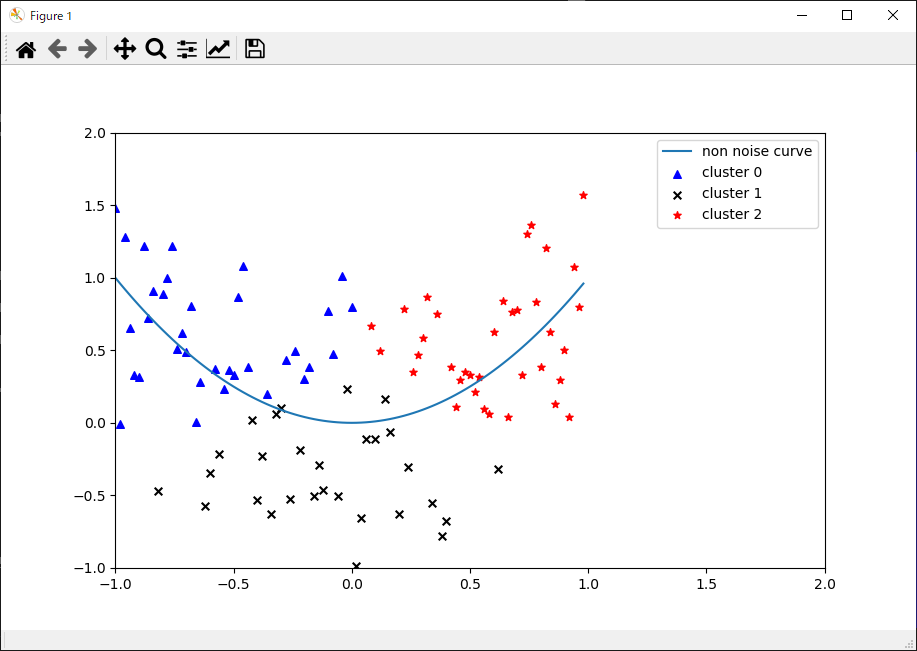
クラスタリングを行います。今回はデータを3つに分けてグラフに表示します。

7行目のn_clustersに分類数を設定します。

[コード]

1
2
3
4
5
6
7
8
9
10
11
12
13
14
15
16
17
18
19
20
21
22
23
24
25
26
27
28
29
30
from sklearn import cluster

# xデータとyデータを結合
data = np.c_[x, y_noise]

# 3つのクラスタに分割
model = cluster.KMeans(n_clusters=3)
model.fit(data)

# 分割結果
# 0から2の番号がつけられている
labels = model.labels_

### データの表示
plt.scatter(x[labels == 0], y_noise[labels == 0], c='blue', s=30, marker='^', label='cluster 0')
plt.scatter(x[labels == 1], y_noise[labels == 1], c='black', s=30, marker='x', label='cluster 1')
plt.scatter(x[labels == 2], y_noise[labels == 2], c='red', s=30, marker='*', label='cluster 2')

# 元の線を点線スタイルで表示
plt.plot(x, y, linestyle='-', label='non noise curve')

# x軸とy軸の範囲を設定
plt.xlim(x_min, y_max)
plt.ylim(y_min, y_max)

# 凡例の表示位置を指定
plt.legend()

# グラフを表示
plt.show()

実行結果は下記の通りです。

[実行結果]

結果

データが青の▲マーク、黒の×マーク、赤の★マークの3つに分類されていることが分かります。

Python - 機械学習② 回帰

機械学習による回帰を行ってみます。

回帰問題のデータ準備

まずは回帰問題用のデータを準備します。

[コード]

1
2
3
4
5
6
7
8
9
10
11
12
13
14
15
16
17
18
19
20
21
22
23
24
25
26
27
28
29
30
31
32
33
34
35
36
37
38
39
40
41
42
43
44
45
46
47
# matplotlibとnumpyをインポート
import matplotlib.pyplot as plt
import numpy as np

# x軸の範囲を定義
x_max = 1
x_min = -1

# y軸の範囲を定義
y_max = 2
y_min = -1

# スケールを定義(1単位に何点を使うか)
SCALE = 50

# テストデータの割り合い(全データに対してテストデータは30%)
TEST_RATE = 0.3

# データ生成
x = np.arange(x_min, x_max, 1 / float(SCALE)).reshape(-1, 1)
# xの2乗
y = x ** 2
y_noise = y + np.random.randn(len(y), 1) * 0.5 # ノイズを乗せる

# 学習データとテストデータに分割(分類問題、回帰問題で使用)
def split_train_test(array):
length = len(array)
n = int(length * (1 - TEST_RATE))

indices = list(range(length))
np.random.shuffle(indices)
idx_train = indices[:n]
idx_test = indices[n:]

return sorted(array[idx_train]), sorted(array[idx_test])

# インデックスリストを分割
indices = np.arange(len(x)) # インデックス値のリスト
idx_train, idx_test = split_train_test(indices)

# 学習データ
x_train = x[idx_train]
y_train = y_noise[idx_train] # ノイズが乗ったデータ

# テストデータ
x_test = x[idx_test]
y_test = y_noise[idx_test] # ノイズが乗ったデータ

回帰

[コード]

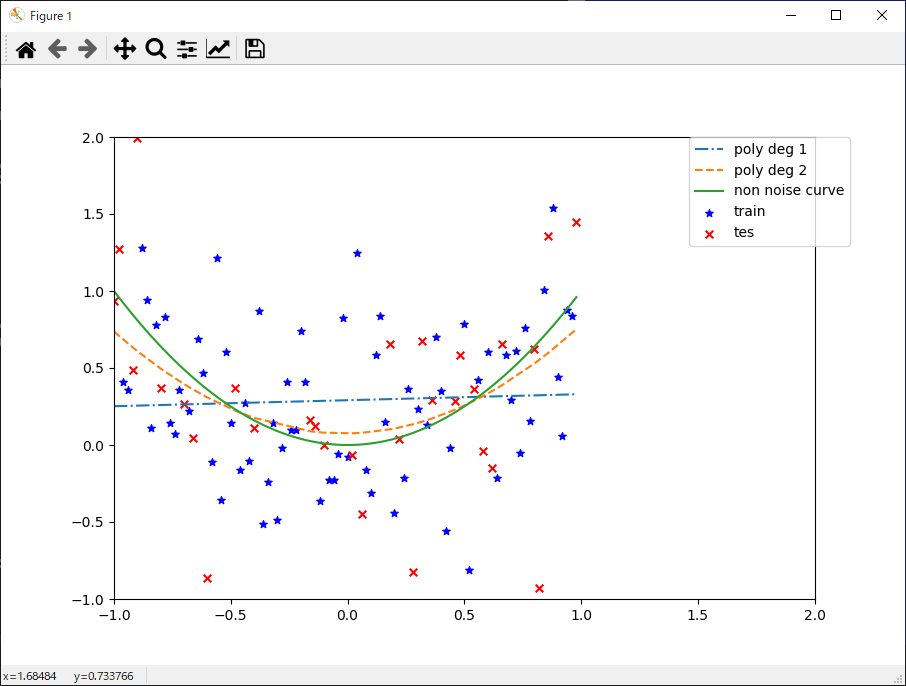
1次式(直線)、2次式で回帰させてみます。

1
2
3
4
5
6
7
8
9
10
11
12
13
14
15
16
17
18
19
20
21
22
23
24
25
26
27
28
29
30
31
32
33
34
35
36
37
38
39
40
41
42
43
44
45
from sklearn import linear_model

### 1次式で回帰

X1_TRAIN = x_train
X1_TEST = x_test

# 学習
model = linear_model.LinearRegression()
model.fit(X1_TRAIN, y_train) # y_trainは学習データ()

# グラフに描画
plt.plot(x_test, model.predict(X1_TEST), linestyle='-.', label='poly deg 1')


### 2次式で回帰

X2_TRAIN = np.c_[x_train**2, x_train]
X2_TEST = np.c_[x_test**2, x_test]

# 学習
model = linear_model.LinearRegression()
model.fit(X2_TRAIN, y_train)

# グラフに描画
plt.plot(x_test, model.predict(X2_TEST), linestyle='--', label='poly deg 2')


### データの表示

plt.scatter(x_train, y_train, c='blue', s=30, marker='*', label='train')
plt.scatter(x_test, y_test, c='red', s=30, marker='x', label='tes')

# 元の線を点線スタイルで表示
plt.plot(x, y, linestyle='-', label='non noise curve')

# x軸とy軸の範囲を設定
plt.xlim(x_min, y_max)
plt.ylim(y_min, y_max)

# 凡例の表示位置を指定
plt.legend(bbox_to_anchor=(1.05, 1), loc='upper left', borderaxespad=0)

# グラフを表示
plt.show()

実行結果は下記の通りです。


[実行結果]

結果

1次式は直線、2次式は元の線とかなり近い形になっていることが分かります。

Python - 機械学習① 分類

機械学習による分類を行ってみます。

まずは分類問題用のデータを準備します。

分類問題のデータ準備

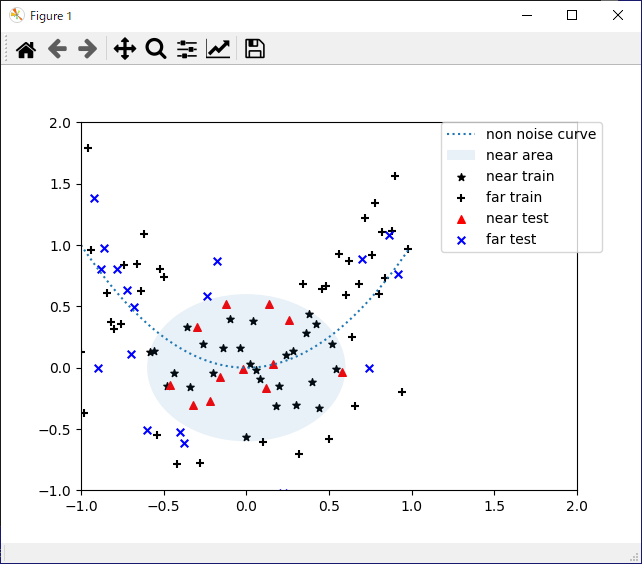
データを原点から近いか遠いかで2つの種類に分け、さらに学習データとテストデータに分け、最終的に4種類のデータを準備します。

[コード]

1
2
3
4
5
6
7
8
9
10
11
12
13
14
15
16
17
18
19
20
21
22
23
24
25
26
27
28
29
30
31
32
33
34
35
36
37
38
39
40
41
42
43
44
45
46
47
48
49
50
51
52
53
54
55
56
57
58
59
60
61
62
63
64
65
66
67
68
69
70
71
72
73
74
75
76
77
78
79
80
81
82
83
84
85
86
87
88
# matplotlibとnumpyをインポート
import matplotlib.pyplot as plt
import numpy as np

# x軸の範囲を定義
x_max = 1
x_min = -1

# y軸の範囲を定義
y_max = 2
y_min = -1

# スケールを定義(1単位に何点を使うか)
SCALE = 50

# テストデータの割り合い(全データに対してテストデータは30%)
TEST_RATE = 0.3

# データ生成
x = np.arange(x_min, x_max, 1 / float(SCALE)).reshape(-1, 1)
# xの2乗
y = x ** 2
y_noise = y + np.random.randn(len(y), 1) * 0.5 # ノイズを乗せる

# 学習データとテストデータに分割(分類問題、回帰問題で使用)
def split_train_test(array):
length = len(array)
n = int(length * (1 - TEST_RATE))

indices = list(range(length))
np.random.shuffle(indices)
idx_train = indices[:n]
idx_test = indices[n:]

return sorted(array[idx_train]), sorted(array[idx_test])

# インデックスリストを分割
indices = np.arange(len(x)) # インデックス値のリスト
idx_train, idx_test = split_train_test(indices)

# 学習データ
x_train = x[idx_train]
y_train = y_noise[idx_train] # ノイズが乗ったデータ

# テストデータ
x_test = x[idx_test]
y_test = y_noise[idx_test] # ノイズが乗ったデータ

# クラスの閾値。原点からの半径
CLASS_RADIUS = 0.6

labels = (x ** 2 + y_noise ** 2) < CLASS_RADIUS ** 2

# 学習データとテストデータに分割
label_train = labels[idx_train] # 学習データ
label_test = labels[idx_test] # テストデータ

## グラフ描画

# 近いか遠いかで2種類に分け、さらに学習データとテストデータに分ける。全部で3種類。

# 学習データ(近い)散布図
plt.scatter(x_train[label_train], y_train[label_train], c='black', s=30, marker='*', label='near train')
# テストデータ(遠い)散布図
plt.scatter(x_train[label_train != True], y_train[label_train != True], c='black', s=30, marker='+', label='far train')

# テストデータ(近い)散布図
plt.scatter(x_test[label_test], y_test[label_test], c='red', s=30, marker='^', label='near test')
# テストデータ(遠い)散布図
plt.scatter(x_test[label_test != True], y_test[label_test != True], c='blue', s=30, marker='x', label='far test')

# 元の線を点線スタイルで表示
plt.plot(x, y, linestyle=':', label='non noise curve')

# クラスの分離円
circle = plt.Circle((0, 0), CLASS_RADIUS, alpha=0.1, label='near area')
ax = plt.gca()
ax.add_patch(circle)

# x軸とy軸の範囲を設定
plt.xlim(x_min, y_max)
plt.ylim(y_min, y_max)

# 凡例の表示位置を指定
plt.legend(bbox_to_anchor=(1.05, 1), loc='uppder left', borderaxespad=0)

# グラフを表示
plt.show()

[実行結果]

結果

近いエリア(near are)の中に、黒い★マーク(near train)と赤い▲マーク(near test)が含まれ、黒い+マーク(far train)と青い×マーク(far test)が含まれていないことが分かります。

これで分類問題用の4種類のデータを準備することができました。

分類

上記で準備したデータを使って分類処理を行っていきます。

[コード]

1
2
3
4
5
6
7
8
9
10
11
12
13
14
15
16
17
18
19
20
21
# 分類問題を解くためにSVMとういうアルゴリズムをインポート
from sklearn import svm
from sklearn.metrics import confusion_matrix, accuracy_score

# [x, y]の組み合わせからなる学習データとテストデータの配列を作成
data_train = np.c_[x_train, y_train]
data_test = np.c_[x_test, y_test]

# SVMの分類器を作成、学習
classifier = svm.SVC(gamma=1)
classifier.fit(data_train, label_train.reshape(-1))

# テストデータで評価(予測)
pred_test = classifier.predict(data_test)

# Accuracyを表示
print('accuracy_score:\n', accuracy_score(label_test.reshape(-1), pred_test))
print()

# 混合行列を表示
print('Confusion matrix:\n', confusion_matrix(label_test.reshape(-1), pred_test))

[実行結果]
accuracy_score:
 0.8666666666666667

Confusion matrix:
[[15 4]
[ 0 11]]


accuracyは正答率を意味し、テストデータ全体における正解の割り合いを表します。

86.6%であればまあまあの分類性能ということになるでしょうか。

Python - 機械学習の前準備

機械学習の代表的な処理として次の3つを挙げることができます。

  • 分類
    与えられたデータから分類(クラス)を予測します。
  • 回帰
    与えられたデータから数値を予測します。
  • クラスタリング
    データの性質に従って、データの塊(クラスタ)を作成します。

今回は機械学習の前準備としまして、データの準備グラフ化を行っていきます。

データの準備・グラフ化

[コード]

1
2
3
4
5
6
7
8
9
10
11
12
13
14
15
16
17
18
19
20
21
22
23
24
25
26
27
28
29
30
31
32
33
34
35
36
37
38
39
40
41
42
43
44
45
46
47
48
49
50
51
52
53
54
55
56
57
58
59
60
61
62
63
64
65
# matplotlibとnumpyをインポート
import matplotlib.pyplot as plt
import numpy as np

# x軸の範囲を定義
x_max = 1
x_min = -1

# y軸の範囲を定義
y_max = 2
y_min = -1

# スケールを定義(1単位に何点を使うか)
SCALE = 50

# テストデータの割り合い(全データに対してテストデータは30%)
TEST_RATE = 0.3

# データ生成
x = np.arange(x_min, x_max, 1 / float(SCALE)).reshape(-1, 1)
# xの2乗
y = x ** 2
y_noise = y + np.random.randn(len(y), 1) * 0.5 # ノイズを乗せる

# 学習データとテストデータに分割(分類問題、回帰問題で使用)
def split_train_test(array):
length = len(array)
n = int(length * (1 - TEST_RATE))

indices = list(range(length))
np.random.shuffle(indices)
idx_train = indices[:n]
idx_test = indices[n:]

return sorted(array[idx_train]), sorted(array[idx_test])

# インデックスリストを分割
indices = np.arange(len(x)) # インデックス値のリスト
idx_train, idx_test = split_train_test(indices)

# 学習データ
x_train = x[idx_train]
y_train = y_noise[idx_train]

# テストデータ
x_test = x[idx_test]
y_test = y_noise[idx_test]

### グラフ描画

# 分析対象点の散布図
plt.scatter(x, y_noise, label='target')

# 元の線を点線スタイルで表示
plt.plot(x, y, linestyle=':', label='non noise curve')

# x軸 y軸の範囲を設定
plt.xlim(x_min, x_max)
plt.ylim(y_min, y_max)

# 凡例の表示位置を指定
plt.legend(bbox_to_anchor=(1.05, 1), loc='uppder left', borderaxespad=0)

# グラフを表示
plt.show()

[実行結果]

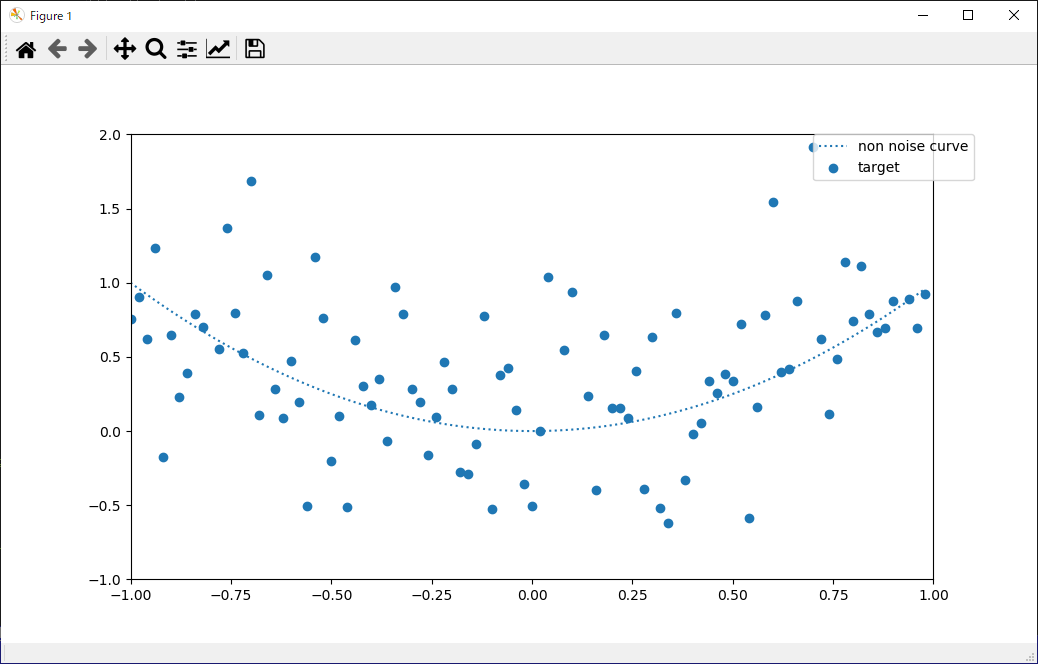
結果

青い●が機械学習で使用するデータとなります。

点線はノイズが乗る前の元の曲線を表しています。

Python matplotlib - グラフの描画

Pythonでグラフを描画する場合に、matplotlibというライブラリがよく使われます。

折れ線グラフや散布図などを描くことができ、詳細に表示設定をすることもできます。

グラフの描画

[コード]

1
2
3
4
5
6
7
8
9
10
11
12
13
14
15
16
17
18
19
20
21
22
23
24
25
26
27
28
29
30
31
32
33
34
# 方程式を設定するためにNumpyをインポート
import numpy as np
# グラフを描画するためにmatplotlibをインポート
import matplotlib.pyplot as plt

# x軸の領域と精度を設定
x1 = np.arange(-3, 3, 0.1)
# 方程式のy値を設定
y1 = np.sin(x1)

# x値とy値ともにランダムな値を設定
x2 = np.random.rand(100) * 6 -3
y2 = np.random.rand(100) * 6 -3

# figureオブジェクトを作成
plt.figure()

# 1つのグラフで表示する設定
plt.subplot(1, 1, 1)

# 線形とマーカー、ラベルを設定しグラフを描画する
plt.plot(x1, y1, marker='o', markersize=5, label='line')

# 散布図を描画する
plt.scatter(x2, y2, label='scatter')

# 凡例表示を設定
plt.legend()

# グリッド線を表示
plt.grid(True)

# グラフ表示
plt.show()

[実行結果]

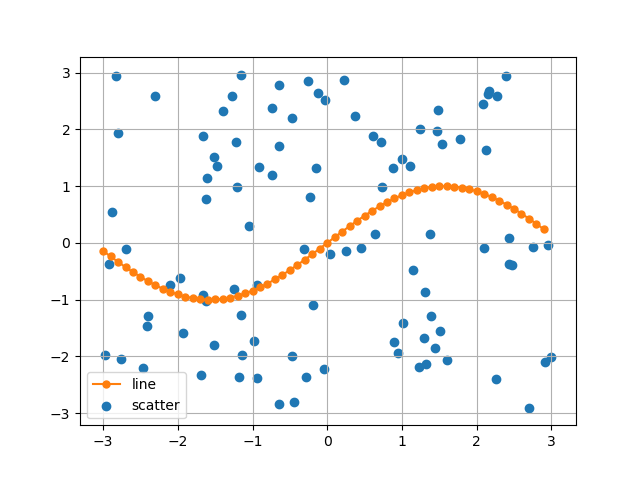
結果

Python Numpy⑥ - 行列での四則演算

Numpy行列で四則演算を行っていきます。

行列の準備

まずNumpyをインポートし、2行3列の行列を2つ作成します。

[コード]

1
2
3
4
5
6
7
8
9
10
11
12
import numpy as np

# 1つめの2次元配列を定義
x = np.array([[1, 2, 3], [4, 5, 6]])
print('行列 x')
print(x)
print()

# 2つめの2次元配列を定義
y = np.array([[1, 2, 3], [0.1, 0.5, 0.8]])
print('行列 y')
print(y)

[実行結果]

行列 x
[[1 2 3]
 [4 5 6]]

行列 y
[[1.  2.  3. ]
 [0.1 0.5 0.8]]

行列の四則演算


形状が同じ行列同士ではそのまま四則演算が適用できます。

[コード]

1
2
3
4
5
6
7
8
9
10
11
12
13
14
print('# 和')
print(x + y)
print()

print('# 差')
print(x - y)
print()

print('# 積')
print(x * y)
print()

print('# 商')
print(x / y)

[実行結果]

# 和
[[2.  4.  6. ]
 [4.1 5.5 6.8]]

# 差
[[0.  0.  0. ]
 [3.9 4.5 5.2]]

# 積
[[1.  4.  9. ]
 [0.4 2.5 4.8]]

# 商
[[ 1.   1.   1. ]
 [40.  10.   7.5]]

行列のブロードキャスト

先ほどは同じ形状同士で四則演算を行いましたが、配列のサイズが完全に一致しなくても片方の次元の長さが1または0の場合、同じ値によって自動的にサイズ拡張されてから計算されます。

[コード]

1
2
3
4
5
z = np.array([[1, 2, 3]])
print(z)
print()

print(x + z)

[実行結果]

[[1 2 3]]

[[2 4 6]
 [5 7 9]]

1行3列のデータが2行3列に拡張されて計算されていることが分かります。


最後に行列ではない単純な数字を足してみます。


[コード]

1
print(x + 100)

[実行結果]

[[101 102 103]
 [104 105 106]]

全ての要素に対して100が足されていることが分かります。

ブロードキャスト機能を使うといちいち要素ごとに四則演算を行う必要がなくシンプルにコードを書くことができ大変便利です。