Plotly㉓(ファンネル図)

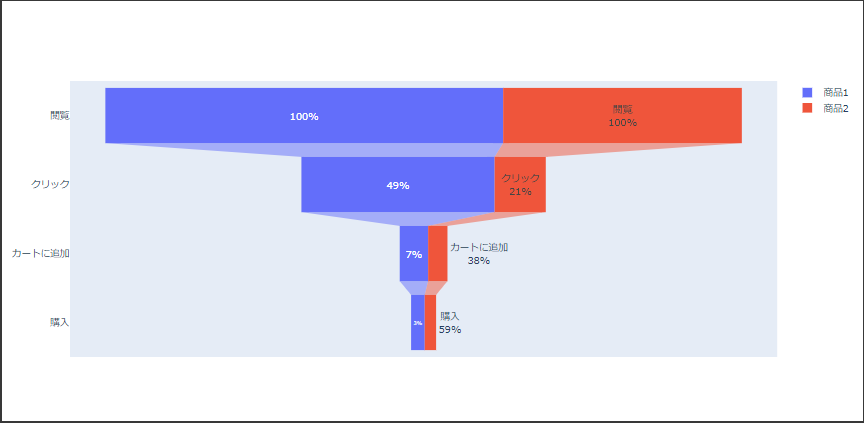
ファンネル図は値が絞り込まれる様子を漏斗(ろうと)の形で表現します。

値は長方形の長さで表現され、次の要素は初期値からの変化または前の値からの変化が描画されます。

ファンネル図

Plotlyでファンネル図を表示するにはFunnelクラスを使用します。

引数 xに各段階の引数 yに各段階のラベルを設定します。(7~8行目、16~17行目)

引数 textinfoには要素の表示形式基準値をスペース区切りで設定します。(9行目、18行目)

基準値とは百分率を表示する場合の基準となる値で、次の3つのいずれかを指定します。

  • initial
    初期値
  • previous
    前の値
  • total
    合計値

[Google Colaboratory]

1
2
3
4
5
6
7
8
9
10
11
12
13
14
15
16
17
18
19
20
21
import plotly.graph_objects as go

funnel_fig = go.Figure()
funnel_fig.add_trace(
go.Funnel(
name="商品1",
x=[350, 170, 25, 12],
y=["閲覧", "クリック", "カートに追加", "購入"],
textinfo="percent initial" # 百分率を表示し、初期値からの変化で描画
)
)
funnel_fig.add_trace(
go.Funnel(
name="商品2",
orientation="h",
x=[210, 45, 17, 10],
y=["閲覧", "クリック", "カートに追加", "購入"],
textinfo="label+percent previous" # ラベルと百分率を表示し、前の値からの変化で描画
)
)
funnel_fig.show()

[実行結果]

Plotly㉒(ウォーターフォール図)

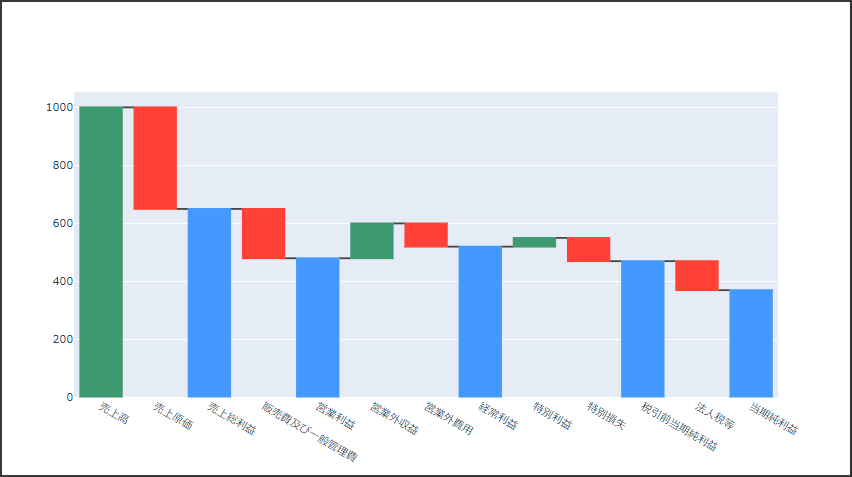
ウォーターフォール図は初期値、累計値、値の増減を長方形の長さで表現します。

値が増加した場合は前の値が底辺となり、値が減少した場合は前の値が上辺となります。

初期値と累計値は0が底辺となります(値が正の場合)。

ウォーターフォール図

Plotlyでウォーターフォール図を表示するにはWaterfallクラスを使用します。

引数 xラベルとなるデータ、引数 yとなるデータを設定します。

引数 measureには“relative”(相対値)、または“total”(合計値)を設定します。

[Google Colaboratory]

1
2
3
4
5
6
7
8
9
10
11
12
13
14
15
16
17
18
19
20
21
22
23
24
25
26
27
28
29
30
31
32
33
34
35
36
37
import plotly.graph_objects as go

go.Figure(
go.Waterfall(
x=[
"売上高",
"売上原価",
"売上総利益",
"販売費及び一般管理費",
"営業利益",
"営業外収益",
"営業外費用",
"経常利益",
"特別利益",
"特別損失",
"税引前当期純利益",
"法人税等",
"当期純利益"
],
measure=[
"relative",
"relative",
"total",
"relative",
"total",
"relative",
"relative",
"total",
"relative",
"relative",
"total",
"relative",
"total"
],
y=[1000, -350, 0, -170, 0, 120, -80, 0, 30, -80, 0, -100, 0]
)
).show()

[実行結果]

Plotly㉑(ローソク足)

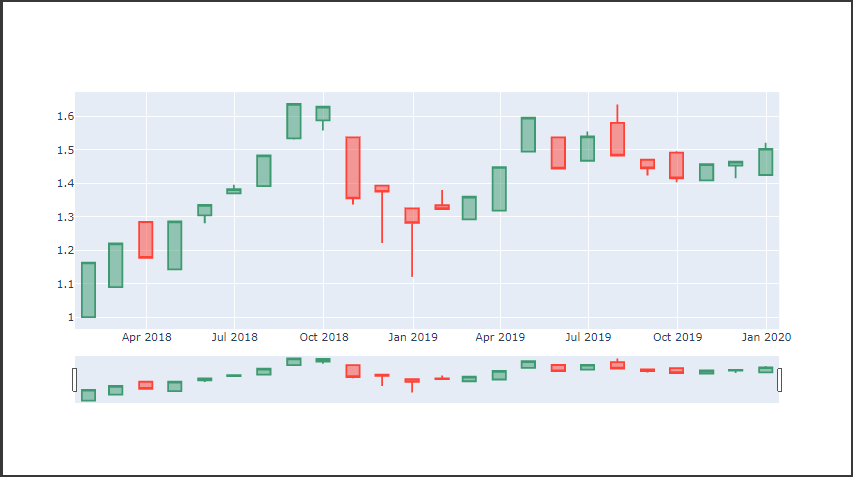
ローソク足時系列データを表現します。

頻度(週や月など)ごとの最大値(高値)と最小値(安値)を線分で表現し、開始値(始値)から終了値(終値)を長方形で表現します。

終値が始値より小さい場合と、大きい場合で違う色で描画されます。

ローソク足

Plotlyでローソク足を表示するにはCandlestickクラスを使用します。

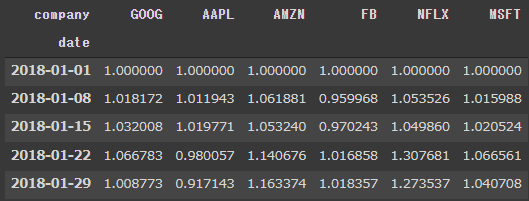
まず、stock(株価)データセットを読み込みます。

[Google Colaboratory]

1
2
3
4
5
6
import plotly
import pandas as pd

stocks = plotly.data.stocks(indexed=True)
stocks.index = pd.to_datetime(stocks.index)
stocks.head()

[実行結果]


Candlestickクラス引数 open、high、low、closeにそれぞれ始値、高値、安値、終値のデータを設定します。

以下のコードでは、データを1か月ごと(月足)にリサンプリングしたDataFrameを作成し、ローソク足を描画しています。

[Google Colaboratory]

1
2
3
4
5
6
7
8
9
10
11
12
13
14
15
16
17
18
import plotly.graph_objects as go

ohlc_df = (
stocks["AMZN"]
.resample("1M") # 1週間ごとにリサンプル
.ohlc() # 4本値にリサンプル
)
go.Figure(
[
go.Candlestick(
x=ohlc_df.index,
open=ohlc_df["open"], # 始値
high=ohlc_df["high"], # 高値
low=ohlc_df["low"], # 安値
close=ohlc_df["close"] # 終値
)
]
).show()

[実行結果]

Plotly⑳(三角図)

三角図

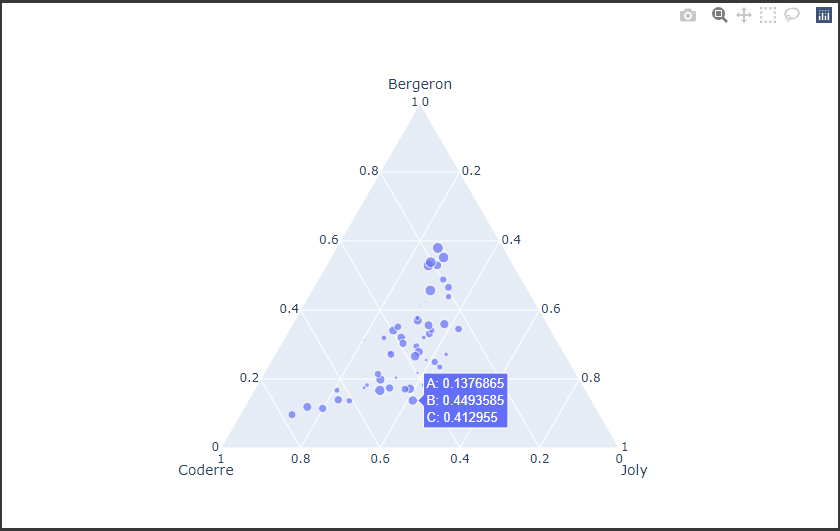
Plotlyで三角図を表示するにはScatterternaryクラスを使用します。

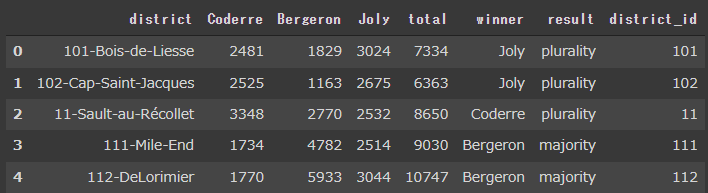
まず、election(選挙)データセットを読み込みます。

[Google Colaboratory]

1
2
3
4
import plotly

election = plotly.data.election()
election.head()

[実行結果]


読み込んだデータセットのBergeron列、Coderre列、Joly列を、Scatterternaryクラスa、b、cに設定し三角図を描画します。(4~6行目)

引数 modeには描画モードを設定します。(7行目)

また、三角図の軸のスタイルを設定するにはLayoutクラス引数 ternaryに辞書型データを設定します。(10~16行目)

[Google Colaboratory]

1
2
3
4
5
6
7
8
9
10
11
12
13
14
15
16
17
import plotly.graph_objects as go

scatterternary_trace = go.Scatterternary(
a=election["Bergeron"], # a軸のデータを設定
b=election["Coderre"], # b軸のデータを設定
c=election["Joly"], # c軸のデータを設定
mode="markers", # 描画モードを設定
marker={"size": election["total"] * 1e-3}
)
scatterternary_layout = go.Layout(
ternary={
"aaxis": {"title": "Bergeron"}, # a軸の名称を設定
"baxis": {"title": "Coderre"}, # b軸の名称を設定
"caxis": {"title": "Joly"} # c軸の名称を設定
}
)
go.Figure(scatterternary_trace, layout=scatterternary_layout)

[実行結果]

Plotly⑲(ポーラチャート)

ポーラチャート

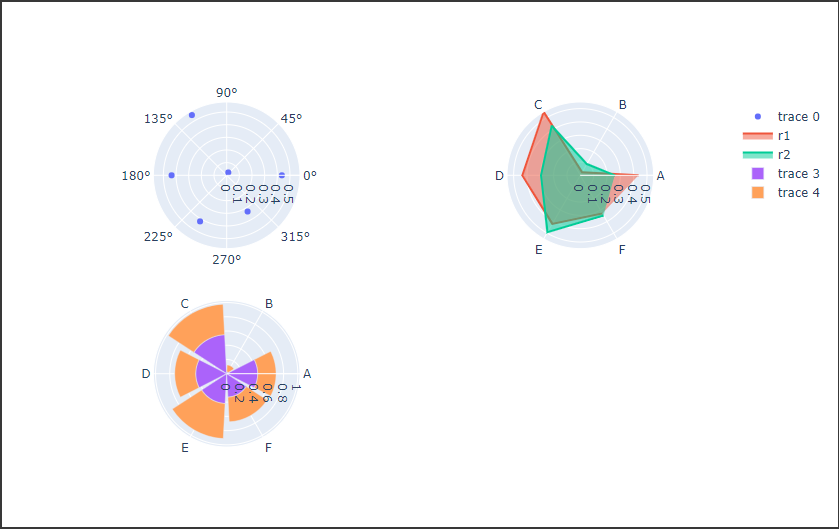
Plotlyでポーラチャートを表示するにはScatterpolarクラスまたはBarpolarクラスを使用します。

データとして、引数 rに極座標の原点からの距離を設定し、引数 thetaには角度を度数法で設定します。

引数 thetaに離散値が設定された場合は、角度が等間隔に割り当てられます。

[Google Colaboratory]

1
2
3
4
5
6
7
8
9
10
11
12
13
14
15
16
17
18
19
20
21
22
23
24
25
26
27
28
29
30
31
32
33
34
35
36
37
38
39
40
41
42
43
44
import numpy as np
import plotly.graph_objects as go
from plotly.subplots import make_subplots

np.random.seed(2)
r1 = np.random.rand(6) # 乱数生成
theta = np.linspace(0, 360, 7)[:-1]
r1_close = np.hstack([r1, np.array(r1[0])])
r2 = r1 + np.random.uniform(-0.3, 0.3, 6)
r2_close = np.hstack([r2, np.array(r2[0])])
label = list("ABCDEF")

polar_fig = make_subplots(
rows=2,
cols=2,
specs=[
[{"type": "polar"}, {"type": "polar"}],
[{"type": "polar"}, {"type": "polar"}]
]
)
# 点で描画
polar_fig.add_trace(
go.Scatterpolar(r=r1, theta=theta, mode="markers"), row=1, col=1
)
# 線で描画(レーダチャート)
polar_fig.add_trace(
go.Scatterpolar(
r=r1_close, theta=label, mode="lines", fill="toself", name="r1"
),
row=1,
col=2
)
polar_fig.add_trace(
go.Scatterpolar(
r=r2_close, theta=label, mode="lines", fill="toself", name="r2"
),
row=1,
col=2
)
# 鶏頭図
polar_fig.add_trace(go.Barpolar(r=r1, theta=label), row=2, col=1)
polar_fig.add_trace(go.Barpolar(r=r2, theta=label), row=2, col=1)
polar_fig.show()

[実行結果]

上図のそれぞれのサブプロットのグラフは下記の通りです。

  • 左上のグラフ
    散布図(点で描画)
  • 右上のグラフ
    レーダーチャート(線で描画)
  • 左下のグラフ
    鶏頭図(積み上げて描画)

Plotly⑱(等高線図)

等高線図

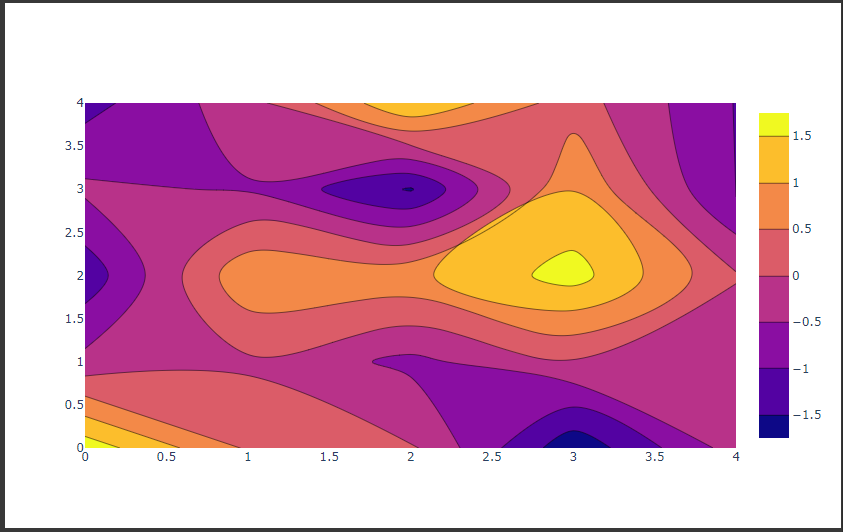
Plotlyで等高線図を表示するにはContourクラスを使用します。

等高線図のデータとして、Contourクラス引数 zに2次元のリストデータを設定します。

以下のコードでは、5行 5列の標準正規分に従う乱数を生成し(5行目)、等高線図を描画しています(7行目)。

[Google Colaboratory]

1
2
3
4
5
6
7
import numpy as np
import plotly.graph_objects as go

np.random.seed(3)
z = np.random.randn(5, 5)

go.Figure([go.Contour(z=z)]).show()

[実行結果]

Plotly⑰(ヒートマップ)

ヒートマップ

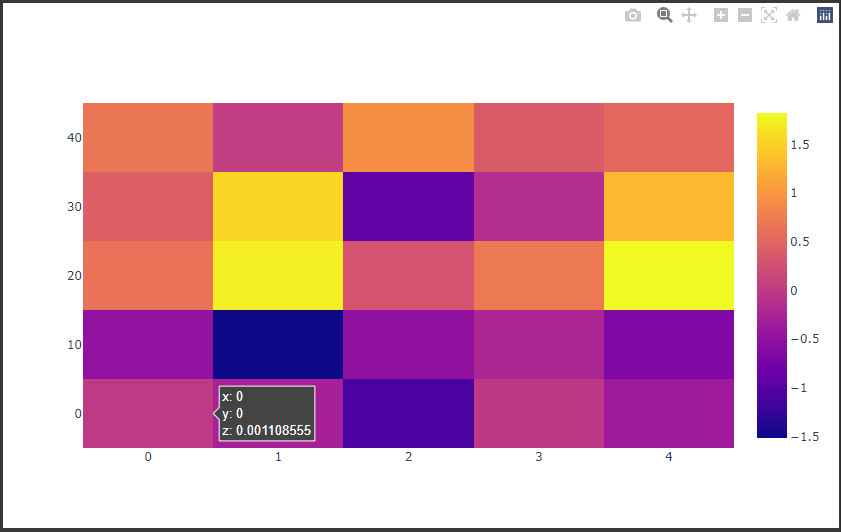
Plotlyでヒートマップを表示するにはHeatmapクラスを使用します。

ヒートマップのデータとして、Heatmapクラス引数 zに2次元のリストデータを設定(9行目)します。

以下のコードでは、5行 5列の標準正規分に従う乱数を生成し(7行目)、ヒートマップに描画しています(9行目)。

[Google Colaboratory]

1
2
3
4
5
6
7
8
9
import numpy as np
import plotly.graph_objects as go

np.random.seed(9)
x = np.arange(0, 5)
y = np.arange(0, 50, 10)
z = np.random.randn(5, 5)

go.Figure([go.Heatmap(x=x, y=y, z=z)]).show()

[実行結果]

Plotly⑯(平行プロット)

平行プロット

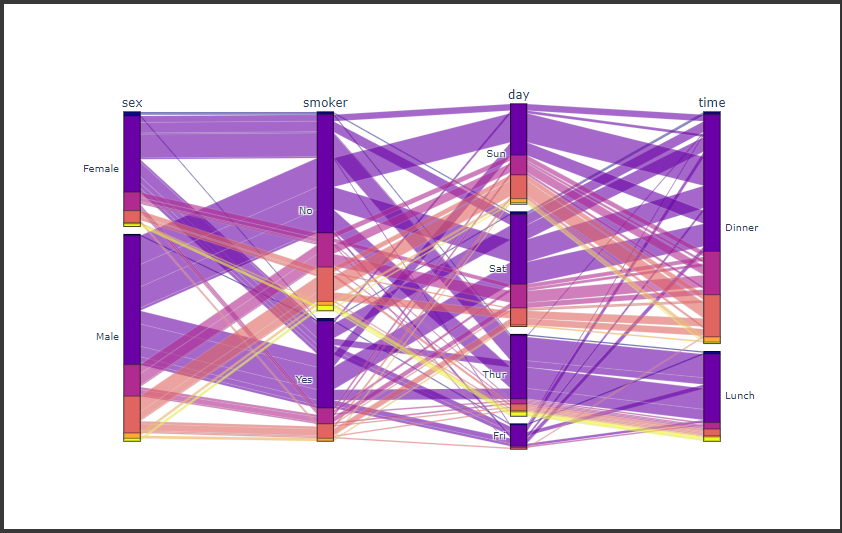
Plotlyで平行プロットを表示するにはParcatsクラスを使用します。

Parcatsクラス引数 dimensionsには描画するデータを設定します。

データとしては、以下のキーを指定した辞書データをリストで渡します。(9~14行目)

  • label
    要素名(軸ラベルとして表示される)
  • values
    リストなどの値

軸間の線分を色分けするには、引数 line“color”をキーとしてリストなどのデータを値とした辞書データを設定します。(15行目)

[Google Colaboratory]

1
2
3
4
5
6
7
8
9
10
11
12
13
14
15
16
17
18
import plotly
import plotly.graph_objects as go

tips = plotly.data.tips()

go.Figure(
[
go.Parcats(
dimensions=[
{"label": "sex", "values": tips["sex"]},
{"label": "smoker", "values": tips["smoker"]},
{"label": "day", "values": tips["day"]},
{"label": "time", "values": tips["time"]}
],
line={"color": tips["size"]} # size列で色分け
)
]
).show()

[実行結果]

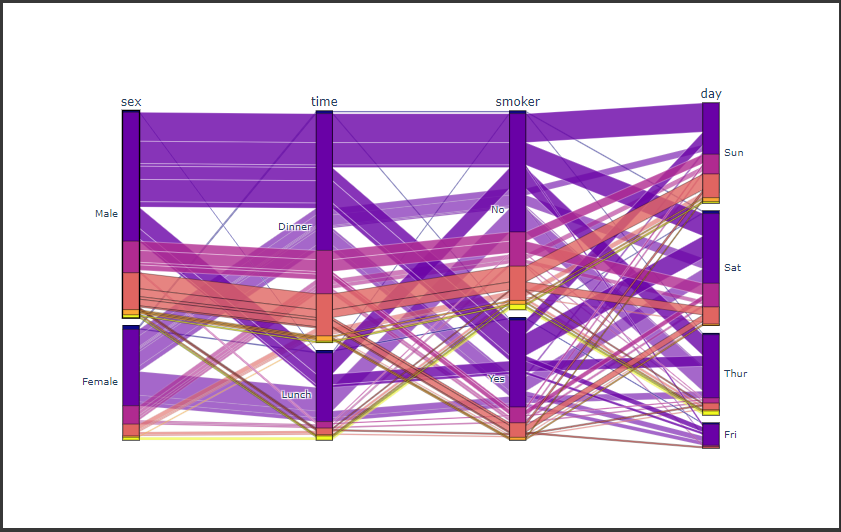
軸の上端をドラッグすると要素を左右に移動することができます。

また軸内の要素をドラッグすると、要素を上下に移動することもできます。

[実行結果(横軸と縦軸を移動)]

上図は、一番右に表示されていた“time”軸を左から2番目に移動し、“sex”軸のMaleとFemaleを上下に入れ替えています。

Plotly⑮(平行座標プロット)

平行座標プロット

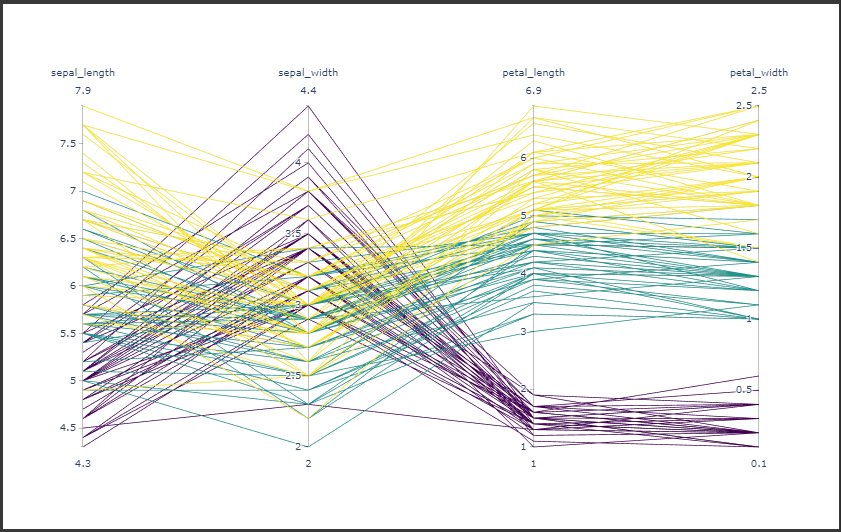
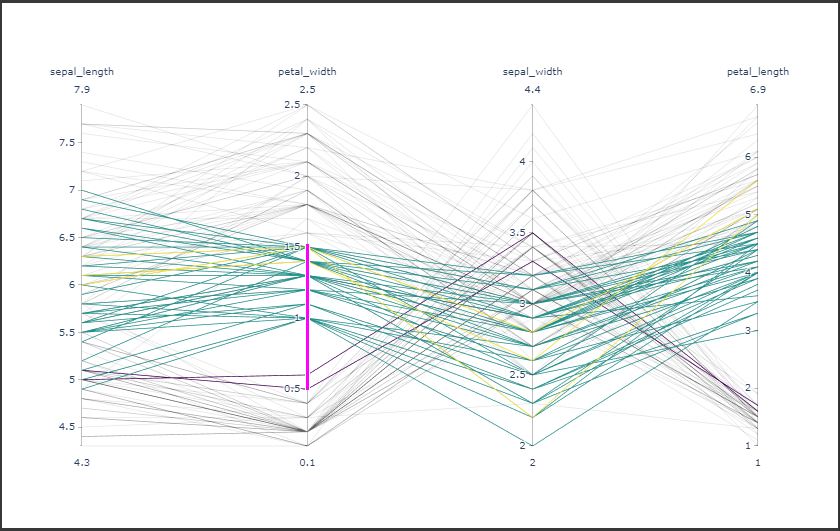
Plotlyで平行座標プロットを表示するにはParcoordsクラスを使用します。

Parcoordsクラス引数 dimensionsに描画するデータを設定します。

データとしては、以下のキーを指定した辞書データをリストで渡します。(9~14行目)

  • label
    要素名(軸ラベルとして表示される)
  • values
    リストなどの値

軸間の線分を色分けするには、引数 line“color”をキーとしてリストなどのデータを値とした辞書を設定します。(15行目)

[Google Colaboratory]

1
2
3
4
5
6
7
8
9
10
11
12
13
14
15
16
17
18
import plotly
import plotly.graph_objects as go

iris = plotly.data.iris()

go.Figure(
[
go.Parcoords(
dimensions=[
{"label": "sepal_length", "values": iris["sepal_length"]},
{"label": "sepal_width", "values": iris["sepal_width"]},
{"label": "petal_length", "values": iris["petal_length"]},
{"label": "petal_width", "values": iris["petal_width"]}
],
line={"color": iris["species_id"]} # species_idで色分け
)
]
).show()

[実行結果]

軸の上端をドラッグすると要素を左右に移動することができます。

また軸上で任意の範囲をドラッグすると、その範囲の要素をハイライトして表示できます。

[実行結果(軸を移動し、ハイライト表示)]

上図は、一番右に表示されていた“petal_width”を左から2番目に移動し、その軸上の0.5から1.5の範囲を選択しハイライト表示(ピンク色)しています。

Plotly⑭(エラーバー)

エラーバー

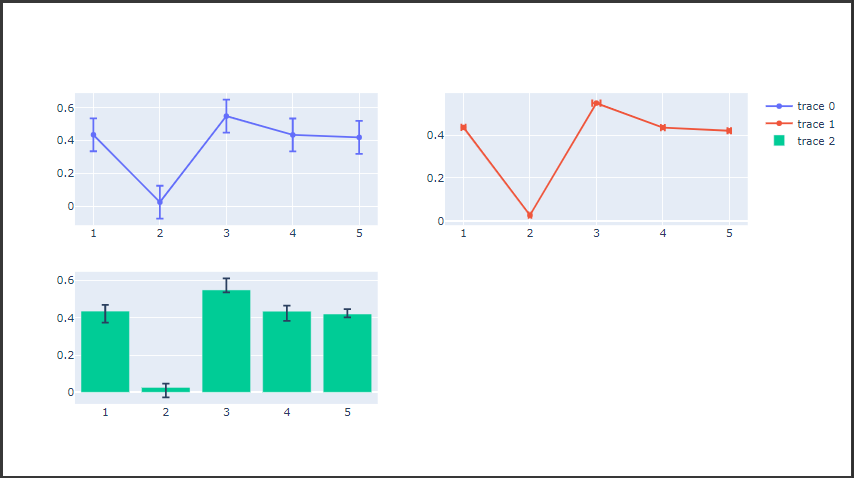
Plotlyでエラーバーを表示するにはtraceerror_x属性またはerror_y属性を設定します。

設定する属性は下記の通りです。

  • type
    percent:エラー値を割合で指定
    constant:エラー値を定数で指定
    sqrt:値の平方根がエラー値となる
    data:各要素のエラー値を指定
  • symmetric
    True:対称なエラーバー
    False:非対称なエラーバー
  • array
    各要素のエラー値を指定
  • arrayminus
    エラーバーを非対称(symmetricをFalse)にした場合、各要素の負の値を指定
  • value
    エラー値を指定
  • valueminus
    エラーバーを非対称(symmetricをFalse)にした場合、エラー値の負の値を指定

以下のコードではエラー値を指定したグラフを描画しています。

[Google Colaboratory]

1
2
3
4
5
6
7
8
9
10
11
12
13
14
15
16
17
18
19
20
21
22
23
24
25
26
27
28
29
30
31
32
33
34
35
36
37
38
39
40
41
42
43
44
45
46
47
48
49
50
import numpy as np
import plotly.graph_objects as go
from plotly.subplots import make_subplots

np.random.seed(2)
x = np.arange(1, 6)
y = np.random.rand(5)

error_fig = make_subplots(rows=2, cols=2)

# エラーバーを一定の値で指定
error_fig.add_trace(
go.Scatter(
x=x,
y=y,
# エラーバーを定数で指定
error_y={"type": "constant", "value": 0.1},
),
row=1,
col=1
)
# 各要素ごとにエラーバーを指定
err_value = np.random.rand(5) * 0.1
error_fig.add_trace(
go.Scatter(
x=x,
y=y,
# 各要素のエラーバーを指定
error_x={"type": "data", "array": err_value},
),
row=1,
col=2
)
# エラーバーを正の値と負の値をそれぞれ指定
err_value_minus = np.random.rand(5) * 0.1
error_fig.add_trace(
go.Bar(
x=x,
y=y,
error_y={
"symmetric": False, # エラーバーを非対称
"type": "data",
"array": err_value,
"arrayminus": err_value_minus, # 各要素の負の値を指定
},
),
row=2,
col=1
)
error_fig.show()

[実行結果]

各グラフの説明は以下の通りです。

  • 左上の図
    Y値のエラーバーを一定の値で指定した折れ線グラフ
  • 右上の図
    各要素ごとにX値のエラーバーを指定した折れ線グラフ
  • 左下の図
    Y値のエラーバーに正の値と負の値をそれぞれ指定した棒グラフ