Dash㊶(Intervalコンポーネント)

Intervalコンポーネント

Intervalコンポーネントを使うと、定期的にコールバックを実行することができます。

Intervalコンポーネントinterval属性更新間隔(ミリ秒)を設定します。

またn_intervals属性を参照し、実行回数を確認することができます。

Intervalクラスの設定値は次の通りです。

オプション データ型 内容
interval 数値 更新間隔をミリ秒単位で設定。
デフォルト値は1000。
disabled ブール型 Trueの場合、コンポーネントを更新しない。
n_intervals 数値 更新回数。
デフォルト値は0。
max_intervals 数値 更新回数の上限。指定回数で更新が止まる。
デフォルト値は-1で、無制限に更新される。

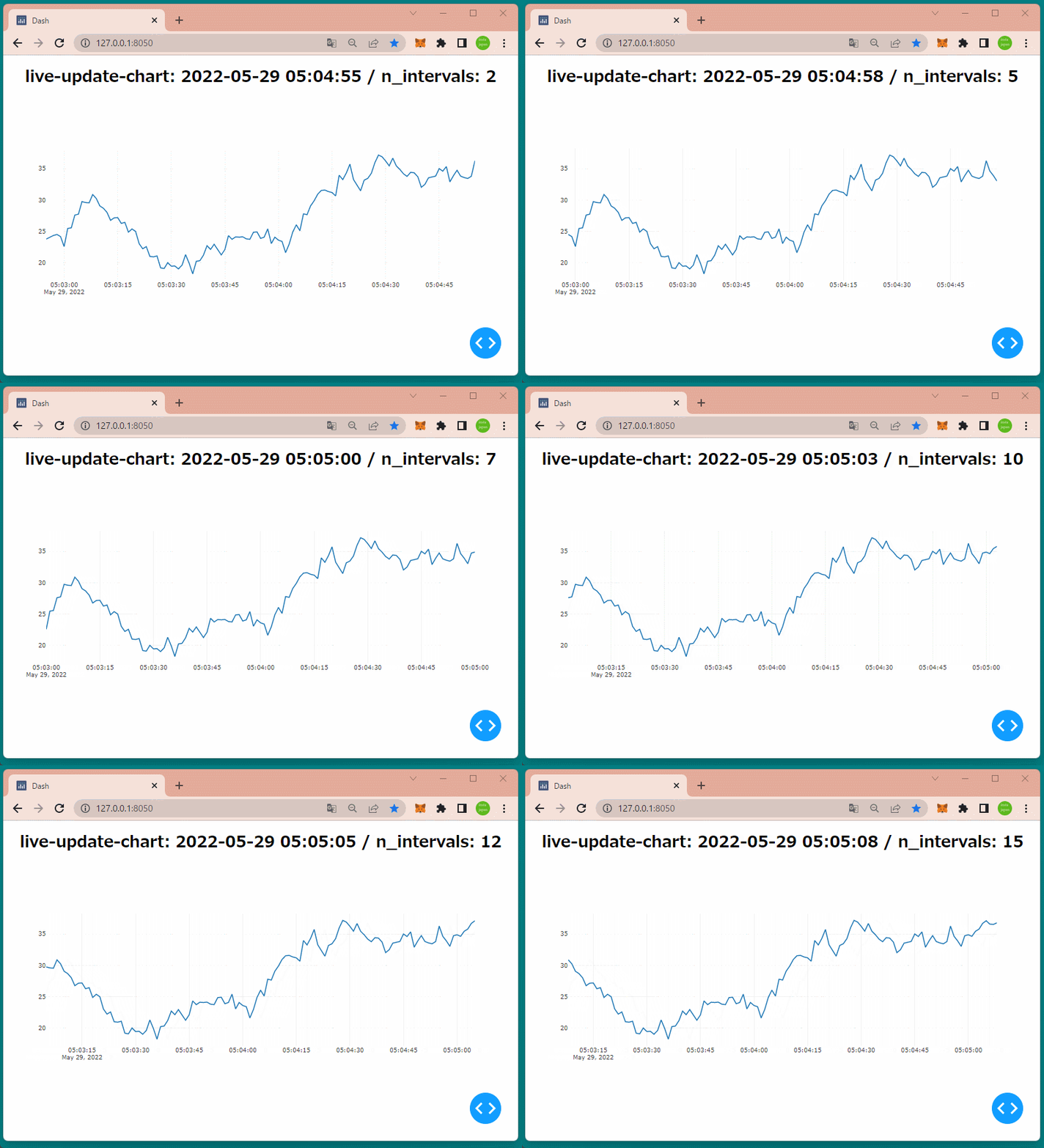
今回はIntervalコンポーネントを使って、乱数で生成したデータを1秒ごとにグラフに反映するアプリケーションを作成します。

[ソースコード]

1
2
3
4
5
6
7
8
9
10
11
12
13
14
15
16
17
18
19
20
21
22
23
24
25
26
27
28
29
30
31
32
33
34
35
36
37
38
39
40
41
42
43
44
45
import datetime
import numpy as np
import pandas as pd

import dash
import dash_core_components as dcc
import dash_html_components as html
import plotly.graph_objects as go
from dash.dependencies import Input, Output

start = pd.Timestamp(datetime.datetime.now()).round("s") - datetime.timedelta(seconds=300)

df = pd.DataFrame(
{'price':np.random.randn(1000).cumsum()},
index=pd.date_range(start, freq='s', periods=1000)
)


app = dash.Dash(__name__) # Dashインスタンスを生成

app.layout = html.Div(
[
html.H1(id='title1', style={'textAlign':'center'}),
dcc.Graph(id='graph1'),
dcc.Interval(id='interval1', interval=1000, max_intervals=100)
]
)

# コールバックの定義
@app.callback(
Output('title1', 'children'),
Output('graph1', 'figure'),
Input('interval1', 'n_intervals')
)
def update(n_intervals):
now = pd.Timestamp(datetime.datetime.now()).round('s')
past = now - datetime.timedelta(seconds=120)
plot_df = df.loc[past:now]
return (
'live-update-chart: {} / n_intervals: {}'.format(now, n_intervals),
{'data': [go.Scatter(x=plot_df.index, y=plot_df['price'])]}
)

if __name__ == '__main__':
app.run_server(debug=True) # アプリケーションを起動

コールバックの入力項目にn_interval属性を設定し、一定間隔でアプリケーションを更新しています。

[ブラウザで表示]

1秒ごとにグラフのデータが更新されていることを確認できます。

Dash㊵(Locationコンポーネント)

Locationコンポーネント

Locationコンポーネントは、アドレスバーの役割を担います。

コールバックと合わせて使用することで、アドレスバーLinkコンポーネントで指定されたパス(URL)に応じたコンテンツ(ページ)を表示することができます。

ローケーションの設定値は次の通りです。

オプション データ型 内容
hash 文字列 URLの#以降の部分
href 文字列 URLの全体
pathname 文字列 URLのパス名
refresh ブール型 ロケーションが更新された場合に、ページを更新するかどうか。
デフォルトはTrue。
search 文字列 URLのサーチ部分

コンポーネントの役割を確認するために、Locationコンポーネントの属性値を表示するアプリケーションを作成します。

[ソースコード]

1
2
3
4
5
6
7
8
9
10
11
12
13
14
15
16
17
18
19
20
21
22
23
24
25
26
27
28
29
30
31
32
33
34
35
36
37
38
39
40
41
42
43
44
45
46
47
import dash
import dash_core_components as dcc
import dash_html_components as html
from dash.dependencies import Input, Output

app = dash.Dash(__name__) # Dashインスタンスを生成

app.layout = html.Div(
[
dcc.Location(id='dcc_location'),
html.Div(id='location1'),
html.Div(id='location2'),
html.Div(id='location3'),
html.Div(id='location4'),
html.Br(),
dcc.Link('/test', href='/test'),
html.Br(),
dcc.Link('/test?what', href='/test?what'),
html.Br(),
dcc.Link('/test?what#dashhash', href='/test?what#dashhash'),
html.Br(),
dcc.Link('home', href='/')
],
style={'fontSize':30, 'textAlign':'center'}
)

# コールバックの定義
@app.callback(
Output('location1', 'children'),
Output('location2', 'children'),
Output('location3', 'children'),
Output('location4', 'children'),
Input('dcc_location', 'href'),
Input('dcc_location', 'pathname'),
Input('dcc_location', 'search'),
Input('dcc_location', 'hash'),
)
def update_location(url, pathname, search, hash):
return (
'href={}'.format(url),
'pathname={}'.format(pathname),
'search={}'.format(search),
'hash={}'.format(hash)
)

if __name__ == '__main__':
app.run_server(debug=True) # アプリケーションを起動

[ブラウザで表示]

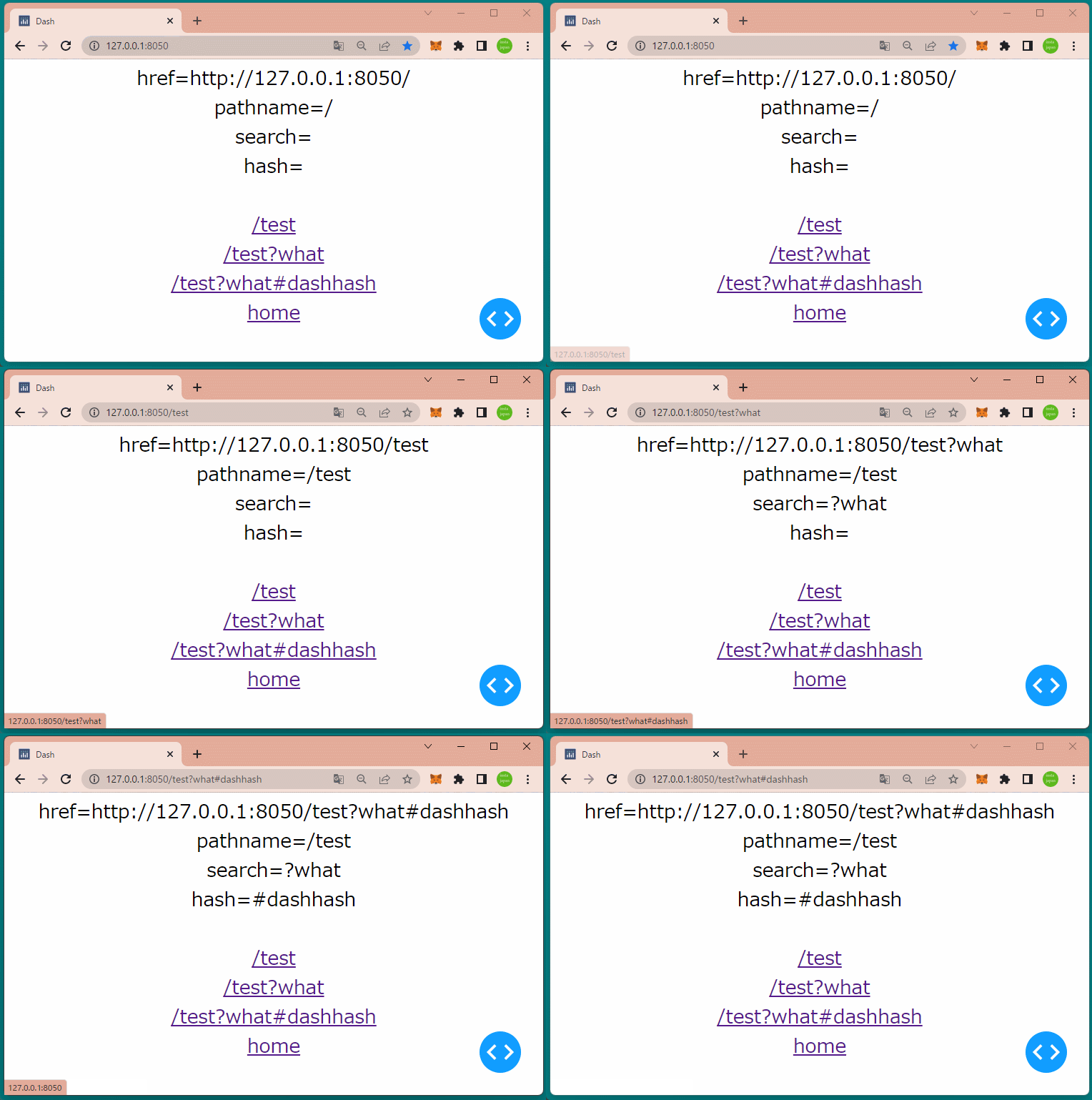
初期画面としては、href属性pathname属性の値が表示されます。

/test?what#dashhashをクリックすると、search属性hash属性が表示されます。

複数ページのアプリケーションを実現するには、LocationコンポーネントLinkコンポーネントコールバックを組み合わせることになります。

Dash㊴(Linkコンポーネント)

Linkコンポーネント

Linkコンポーネントを使うと、他ページへのリンクを作成することができます。

リンクの設定値は次の通りです。

オプション データ型 内容
第一引数 文字列 ハイパーリンクを設定。
href 文字列 リンク先のURLを設定。
refresh ブール型 リンクをクリックした時にページを更新するかどうか。
デフォルトはFalse。

今回は、リンクが3つあるアプリケーションを作成します。

[ソースコード]

1
2
3
4
5
6
7
8
9
10
11
12
13
14
15
16
17
18
19
20
21
22
23
24
25
26
27
28
29
30
31
32
33
34
35
36
37
38
39
40
41
42
43
44
import dash
import dash_core_components as dcc
import dash_html_components as html
from dash.dependencies import Input, Output

app = dash.Dash(__name__) # Dashインスタンスを生成

app.layout = html.Div(
[
dcc.Location(id='location1'),
html.Br(),
dcc.Link('/test1', href='/test1'),
html.Br(),
dcc.Link('/test2', href='/test2'),
html.Br(),
dcc.Link('/test3', href='/test3'),
html.Br(),
html.Br(),
html.Div(
id='div1',
style={'fontSize':'40', 'textAlign':'center', 'height':350}
)
],
style={'fontSize':'40', 'textAlign':'center'}
)

# コールバックの定義
@app.callback(
Output('div1', 'children'),
Input('location1', 'pathname')
)
def update_location(pathname):
# pathnameごとにコンテンツを返す
if pathname == '/test1':
return html.H1('test1のページ')
elif pathname == '/test2':
return html.H2('test2のページ')
elif pathname == '/test3':
return html.H3('test3のページ')
else:
return '初期画面'

if __name__ == '__main__':
app.run_server(debug=True) # アプリケーションを起動

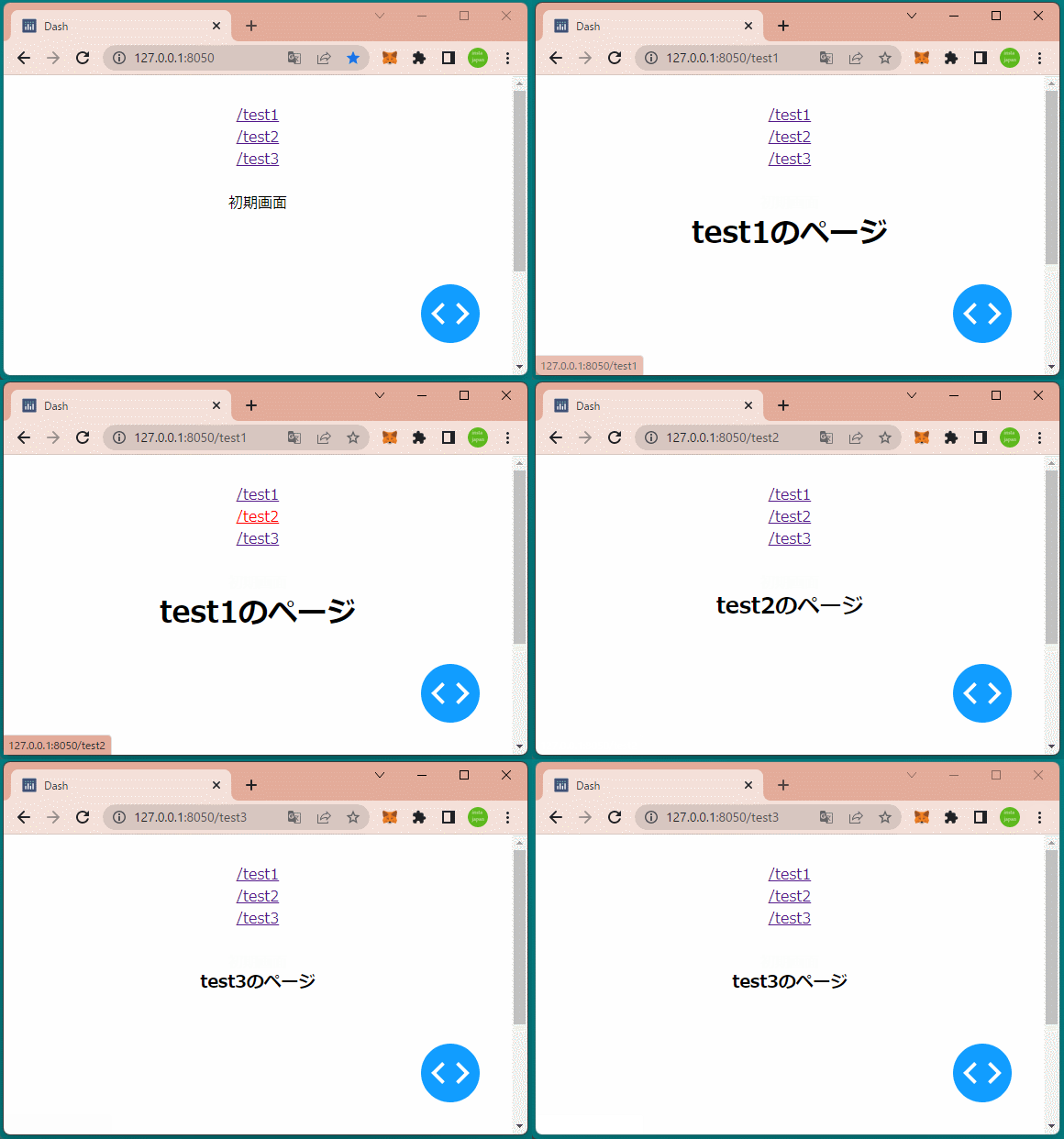
コールバック関数では、クリックされたリンクに応じてDivコンポーネントに文字列を設定しています。

[ブラウザで表示]

リンクをクリックすると、Divコンポーネントの文字列が変わることを確認できます。

Dash㊳(Sliderコンポーネント)

Sliderコンポーネント

Sliderコンポーネントは単一のハンドルをもつスライダーです。

スライダーの設定値は次の通りです。

オプション 内容
min 最小値を設定
max 最大値を設定
step ステップを設定
value 初期値を設定
dots Trueを指定するとスライダーにドットを表示

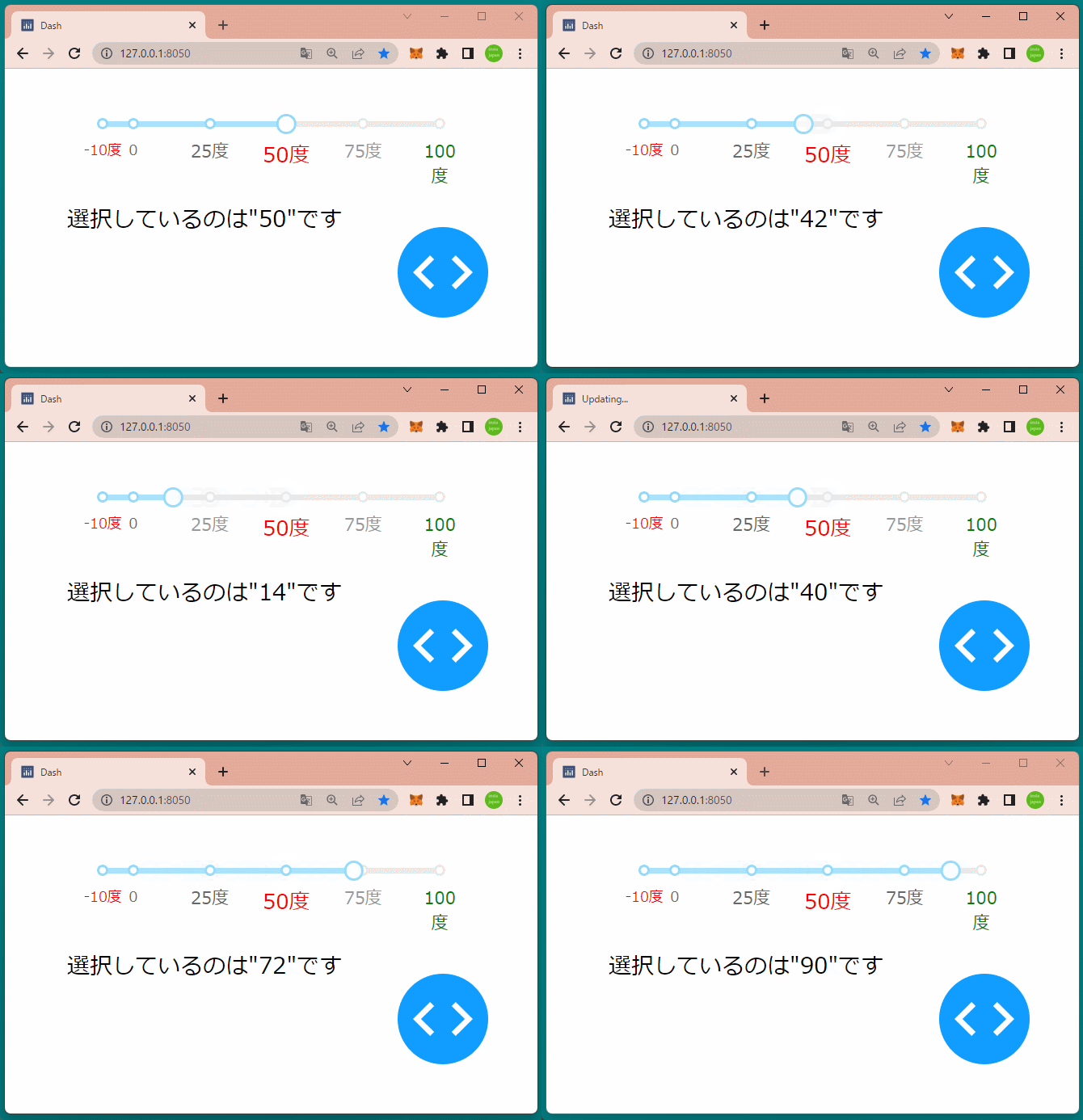
スライダーを変更すると、その選択値をスライダーの下に表示するアプリケーションを作成します。

[ソースコード]

1
2
3
4
5
6
7
8
9
10
11
12
13
14
15
16
17
18
19
20
21
22
23
24
25
26
27
28
29
30
31
32
33
34
35
36
37
38
39
40
41
42
import dash
import dash_core_components as dcc
import dash_html_components as html
from dash.dependencies import Input, Output

app = dash.Dash(__name__) # Dashインスタンスを生成

app.layout = html.Div(
[
html.Br(),
dcc.Slider(
id='slider1',
min=-10, # 最小値
max=100, # 最大値
step=1, # 目盛り
value=50, # 初期値
marks={
-10:{'label':'-10度', 'style':{'color':'red', 'fontSize':10}},
0:{'label':'0', 'style':{'fontSize':10}},
25:{'label':'25度'},
50:{'label':'50度', 'style':{'color':'red', 'fontSize':15}},
75:{'label':'75度'},
100:{'label':'100度', 'style':{'color':'green', 'fontSize':12}},
},
#dots=True
),
html.Br(),
html.Div(id='div1')
],
style={'width':'80%', 'margin':'auto'}
)

# コールバック
@app.callback(
Output('div1', 'children'),
Input('slider1', 'value')
)
def change_img(checklist1):
return '選択しているのは"{}"です'.format(checklist1)

if __name__ == '__main__':
app.run_server(debug=True) # アプリケーションを起動

目盛りのスタイルは引数 marksに数値をキー、ラベルとスタイル設定した辞書型データを設定しています。(17~24行目)

コールバック関数では、スライダーで選択された値をDivコンポーネントに反映しています。(34~39行目)

[ブラウザで表示]

スライダーを移動すると、その選択値がスライダーの下に表示されることを確認できます。

Dash㊲(Loadingコンポーネント)

Loadingコンポーネント

Loadingコンポーネントを使用すると、children引数に格納したコンポーネントのロード中にローディング画面を表示することができます。

Loadingクラスの引数は下記の通りです。

オプション データ型 内容
color 文字列 ローディングの色を設定
fullscreen ブール型 ローディングを全画面表示
type 文字列 ローディングの種類を設定
“default”, “graph”, “cube”, “circle”, “dot”

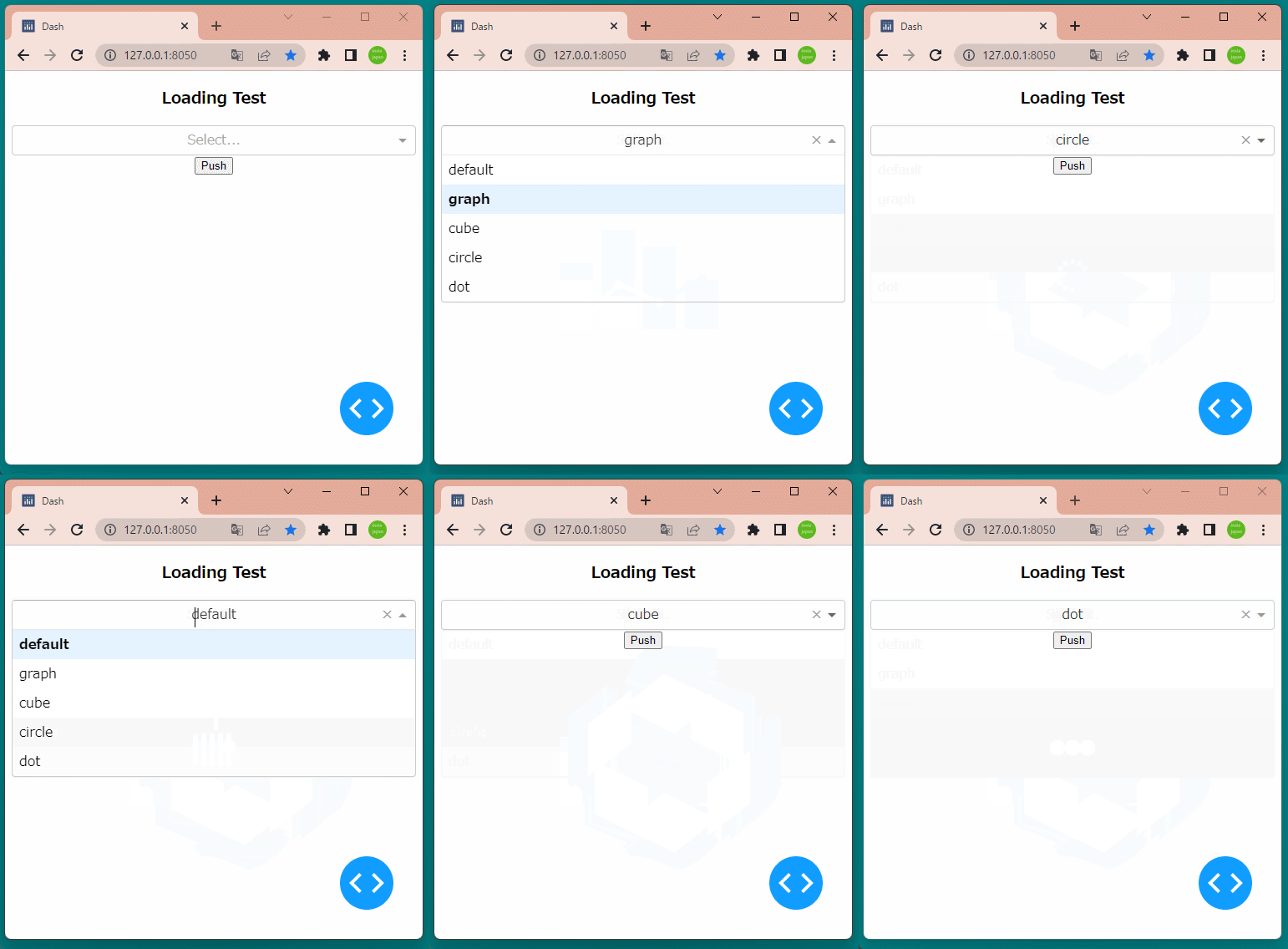
今回は、リストからローディングの種類を選択し、ボタンを押すとLoading画面を5秒間表示します。

[ソースコード]

1
2
3
4
5
6
7
8
9
10
11
12
13
14
15
16
17
18
19
20
21
22
23
24
25
26
27
28
29
30
31
32
33
34
35
36
37
38
39
40
41
42
43
44
45
46
47
48
49
50
51
52
53
54
55
56
import time
import dash
import dash_core_components as dcc
import dash_html_components as html
from dash.dependencies import Input, Output, State

app = dash.Dash(__name__) # Dashインスタンスを生成

app.layout = html.Div(
[
html.H3('Loading Test'),

dcc.Dropdown(id='dropdown1',
options=[
{'label':'default', 'value':'default'},
{'label':'graph', 'value':'graph'},
{'label':'cube', 'value':'cube'},
{'label':'circle', 'value':'circle'},
{'label':'dot', 'value':'dot'}
]
),
html.Button(id='button1', children="Push"),
html.Br(),
html.Br(),
html.Br(),
html.Br(),
html.Br(),
html.Br(),
dcc.Loading(
id='loading1',
children=[html.H1(id='loading', style={'margin':100})]
)
],
style={'textAlign':'center'}
)

# コールバック1
@app.callback(
Output('loading1', 'type'),
Input('dropdown1', 'value')
)
def set_loading_type(dropdown1):
print('set_loading_type', dropdown1)
return dropdown1

# コールバック2
@app.callback(
Input('button1', 'n_clicks')
)
def start_loading(n_clicks):
print('start_loading', n_clicks)
time.sleep(5)
return

if __name__ == '__main__':
app.run_server(debug=True) # アプリケーションを起動

1つめのコールバックでは、リストから選択されたローディングの種類をLoadingコンポーネントに設定しています。

2つめのコールバックでは、Loadingコンポーネントを5秒間表示しています。(今回はOutputにはなにも設定していません。)

[ブラウザで表示]

リストから各ローディングの種類を選択しボタンを押すと、いろいろな種類のLoading画面が表示されることを確認できます。

Dash㊱(Checklistコンポーネント)

Checklistコンポーネント

前回はRadioItemコンポーネントの動作を確認しましたが、今回はChecklistコンポーネントの動作を確認していきます。

実装方法は、RadioItemコンポーネントとほとんど同じで、RadioItemクラスChecklistクラスに変更するだけです。(11行目)

初期値のvalueには、リスト型のデータのみ設定できます。(18行目)

[ソースコード]

1
2
3
4
5
6
7
8
9
10
11
12
13
14
15
16
17
18
19
20
21
22
23
24
25
26
27
28
29
30
31
32
33
34
35
import dash
import dash_core_components as dcc
import dash_html_components as html
from dash.dependencies import Input, Output

app = dash.Dash(__name__) # Dashインスタンスを生成

app.layout = html.Div(
[
html.Br(),
dcc.Checklist(id='checklist1',
options=[
{'label':'愛媛', 'value':'ehime'},
{'label':'香川', 'value':'kagawa'},
{'label':'徳島', 'value':'tokushima'},
{'label':'高知', 'value':'kouchi'}
],
value=['ehime', 'kouchi'], # 複数選択のみ
),
html.Br(),
html.Div(id='div1')
],
style={'width':'80%', 'margin':'auto'}
)

# コールバック
@app.callback(
Output('div1', 'children'),
Input('checklist1', 'value')
)
def change_img(checklist1):
return '選択しているのは"{}"です'.format(checklist1)

if __name__ == '__main__':
app.run_server(debug=True) # アプリケーションを起動

[ブラウザで表示]

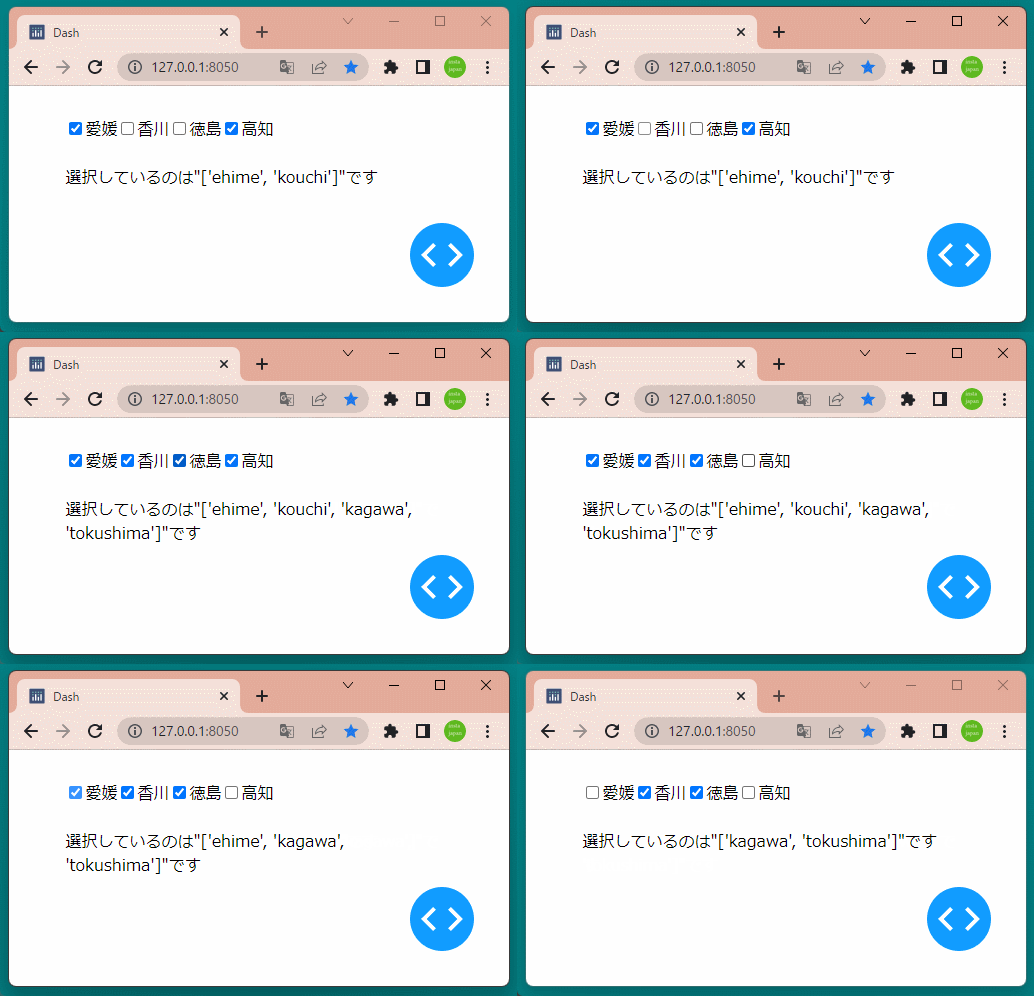
未選択の項目をクリックすると選択済み項目となり、選択済みの項目をクリックすると選択が解除されることが確認できます。

Dash㉟(Dropdownコンポーネント/複数選択)

Dropdownのオプション

Dropdownコンポーネントには下記のようなオプションがあります。

オプション データ型 内容
clearable ブール型 Trueの場合、ドロップダウンの右側に全ての要素を消去するための×印を表示する。デフォルト値はTrue。
multi ブール型 Trueの場合、複数選択が有効になる。デフォルト値はFalse。
options 辞書型 選択肢を次の3つのキーを用いて作成する。
label 選択肢のラベル(文字列または数値:必須)
value 選択肢の値(文字列または数値:必須)
disable Trueが渡された選択を無効にする(ブール型:任意)
searchable ブール型 Trueが渡された場合、選択肢の検索機能が利用できる。デフォルト値はTrue。

Dropdownコンポーネント(複数選択)

Dropdownのオプション multiTrueを設定し複数選択を可能にします。(18行目)

初期値には、選択肢を複数指定するためにリスト型を設定しています。(17行目)

[ソースコード]

1
2
3
4
5
6
7
8
9
10
11
12
13
14
15
16
17
18
19
20
21
22
23
24
25
26
27
28
29
30
31
32
33
34
import dash
import dash_core_components as dcc
import dash_html_components as html
from dash.dependencies import Input, Output

app = dash.Dash(__name__) # Dashインスタンスを生成

app.layout = html.Div(
[
dcc.Dropdown(id='dropdown1',
options=[
{'label':'愛媛', 'value':'ehime'},
{'label':'香川', 'value':'kagawa'},
{'label':'徳島', 'value':'tokushima'},
{'label':'高知', 'value':'kouchi'}
],
value=['ehime', 'kouchi'], # 選択初期値を複数指定
multi=True # 複数選択可能に
),
html.Div(id='div1')
],
style={'width':'80%', 'margin':'auto'}
)

# コールバック
@app.callback(
Output('div1', 'children'),
Input('dropdown1', 'value')
)
def change_img(dropdown1):
return '選択しているのは"{}"です'.format(dropdown1)

if __name__ == '__main__':
app.run_server(debug=True) # アプリケーションを起動

[ブラウザで表示]

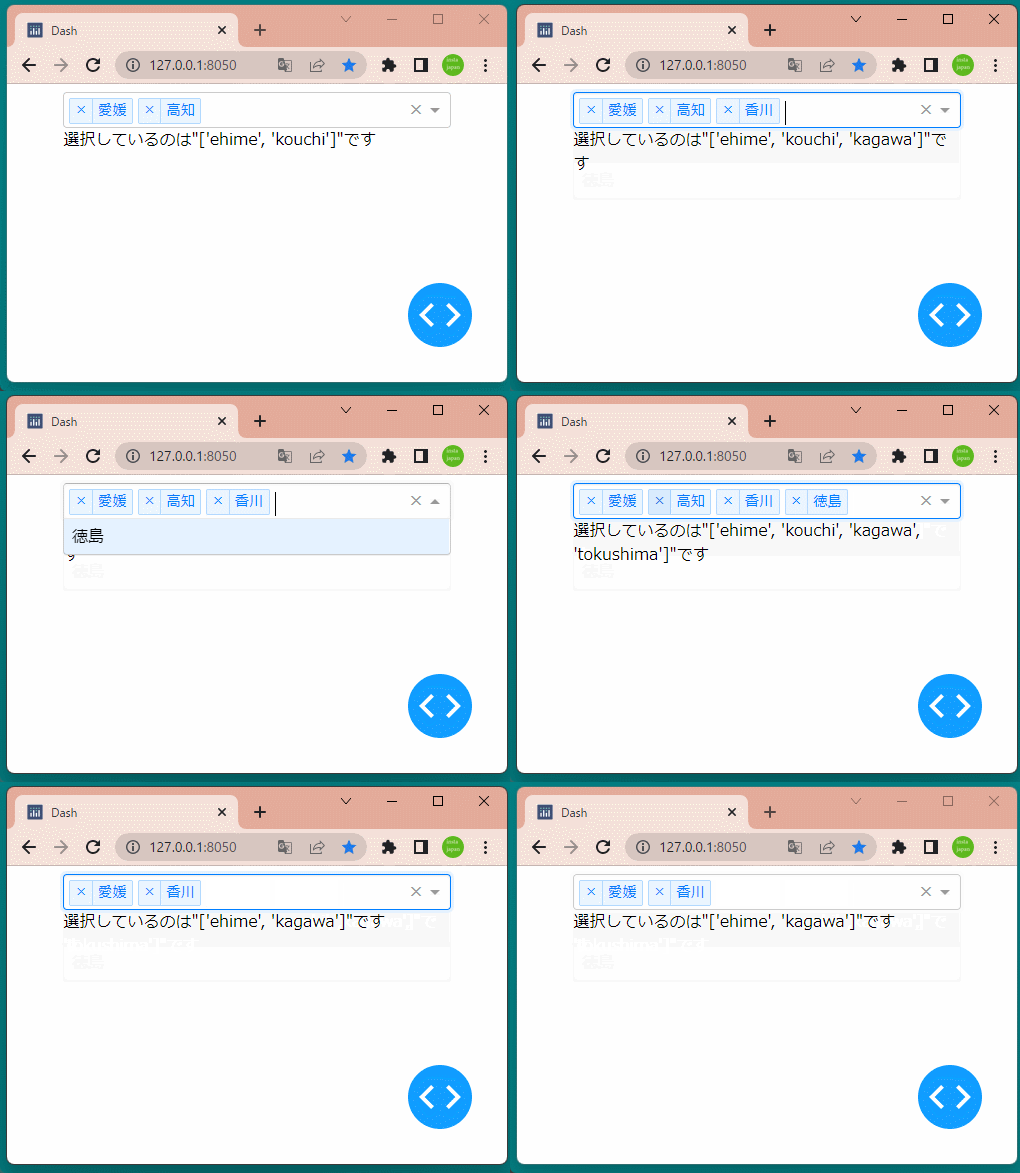
ドロップダウンから値を選択すると、選択済みの項目として追加されます。

また選択済みの項目にそれぞれ表示されている×印をクリックすると、その項目の選択が解除されます。

Dash㉞(Dropdownコンポーネント)

Dropdownコンポーネント

Dropdownコンポーネントは、一覧から値を選択できるコンポーネントです。

選択の方法は単一選択(デフォルト)または複数選択を設定できます。

今回はドロップダウンから値を選択すると、その選択値をドロップダウンの下に表示するアプリケーションを作成します。

[ソースコード]

1
2
3
4
5
6
7
8
9
10
11
12
13
14
15
16
17
18
19
20
21
22
23
24
25
26
27
28
29
30
31
32
33
import dash
import dash_core_components as dcc
import dash_html_components as html
from dash.dependencies import Input, Output

app = dash.Dash(__name__) # Dashインスタンスを生成

app.layout = html.Div(
[
dcc.Dropdown(id='dropdown1',
options=[
{'label':'愛媛', 'value':'ehime'},
{'label':'香川', 'value':'kagawa'},
{'label':'徳島', 'value':'tokushima'},
{'label':'高知', 'value':'kouchi'}
],
value='ehime'
),
html.Div(id='div1')
],
style={'width':'80%', 'margin':'auto'}
)

# コールバック
@app.callback(
Output('div1', 'children'),
Input('dropdown1', 'value')
)
def change_img(dropdown1):
return '選択しているのは"{}"です'.format(dropdown1)

if __name__ == '__main__':
app.run_server(debug=True) # アプリケーションを起動

Dropdownコンポーネントは、以下のように設定します。

  1. 引数 optionsに 選択肢の辞書型データのリストを設定
  2. 引数 valueに ドロップダウンの初期値を設定
  3. 引数 styleに ドロップダウンのスタイルを設定

[ブラウザで表示]

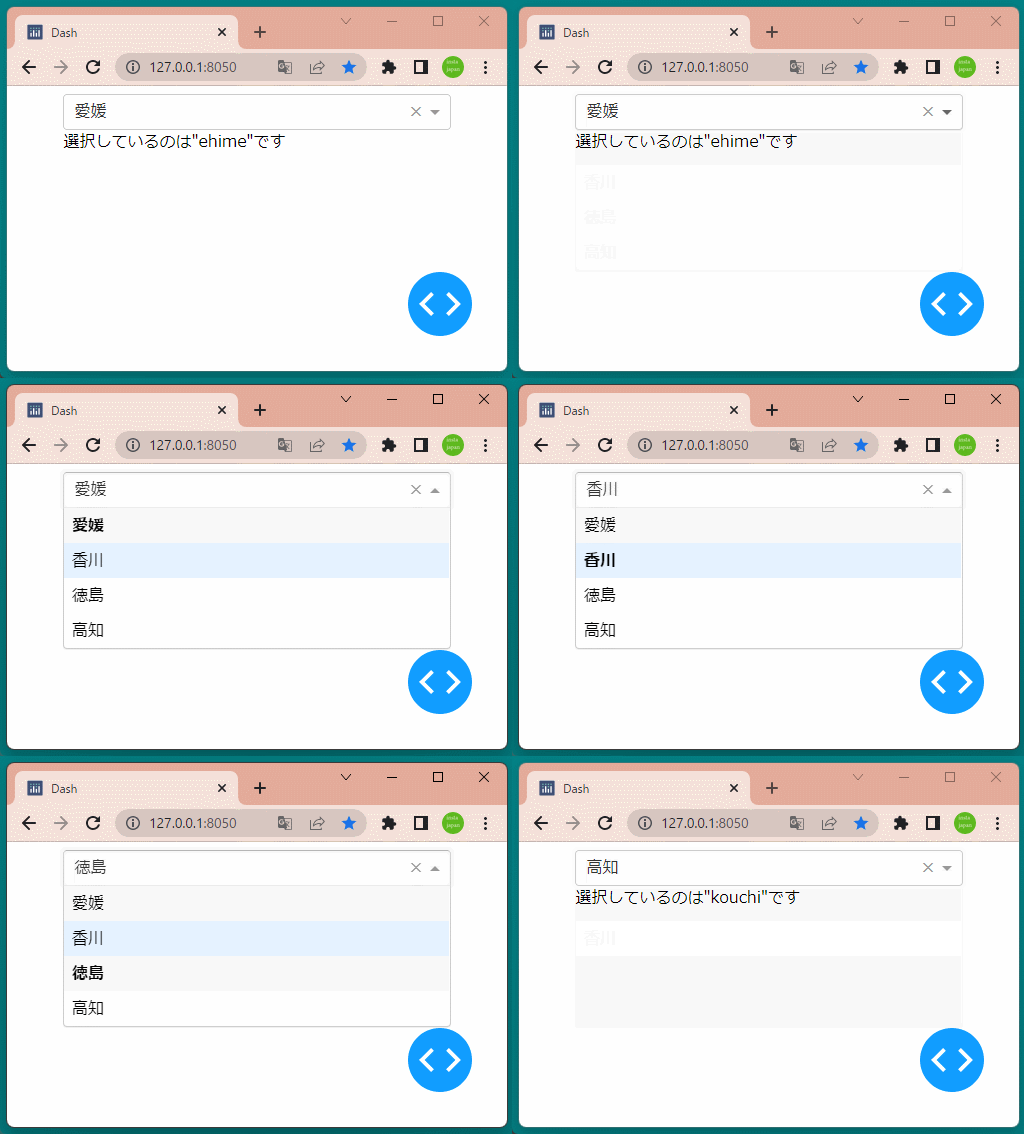
ドロップダウンから値を選択するとその value値 が、ドロップダウンの下に表示されることを確認できます。

Dash㉝(標準コンポーネント/ボタン)

ボタン

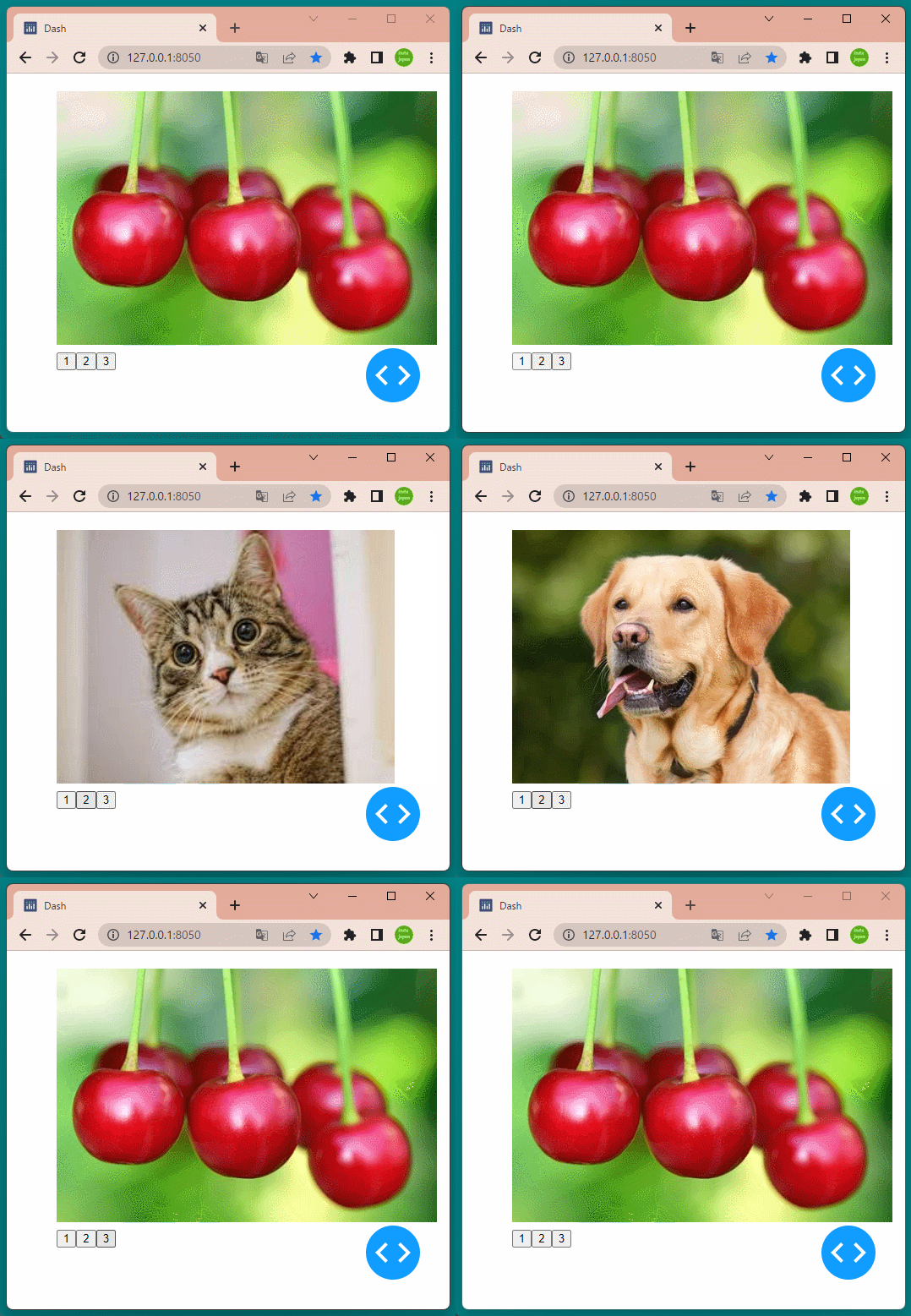
ボタンをクリックすると、イメージが切り替わるアプリケーションを作成します。

[ソースコード]

1
2
3
4
5
6
7
8
9
10
11
12
13
14
15
16
17
18
19
20
21
22
23
24
25
26
27
28
29
30
31
32
33
34
35
36
37
38
39
40
41
42
from datetime import datetime

import dash
import dash_html_components as html
from dash.dependencies import Input, Output

app = dash.Dash(__name__) # Dashインスタンスを生成

app.layout = html.Div(
[
html.Div(
[
html.H1(),
html.Img(id='img1', style={'height':300})
]
),
html.Button(id='btn1', children='1'),
html.Button(id='btn2', children='2'),
html.Button(id='btn3', children='3')
],
style={'width':'80%', 'margin':'auto'}
)

# コールバック
@app.callback(
Output('img1', 'src'),
Input('btn1', 'n_clicks'),
Input('btn2', 'n_clicks'),
Input('btn3', 'n_clicks')
)
def change_img(n_clicks1, n_clicks2, n_clicks3):
selected_id = dash.callback_context.triggered[0]['prop_id'].split('.')[0]
print(selected_id)
if selected_id == 'btn1':
return 'assets/cat.png'
elif selected_id == 'btn2':
return 'assets/dog.png'
else:
return 'assets/cherry.png'

if __name__ == '__main__':
app.run_server(debug=True) # アプリケーションを起動

コールバックで、ImgコンポーネントButtonコンポーネントを使って、ボタンをクリックするとイメージを切り替えます。

dash.callback_contextは、コールバック関数の引数のIDや属性、値をもち、コールバック関数の中からのみ利用することができます。

dash.callback_context.triggeredプロパティを参照して、押されたボタンのIDを取得し、ボタンのIDに対応した画像のパスを返します。(32~39行目)

[ブラウザで表示]

ボタンを押すと、イメージを切り替えることができます。

Dash㉜(標準コンポーネント/文字列)

HTMLコンポーネント

Dashでは、いろいろなコンポーネントが提供されています。

主なコンポーネントを下記のテーブルに表します。

クラス 内容
Div コンテンツ分割
H1~H6 見出し
P テキストの段落
Link リンク
Button ボタン
Img 画像の埋め込み

文字列用コンポーネント

H1~H6Divなどのコンポーネントには、引数 children に値を設定することで表示する文字列を変更することができます。

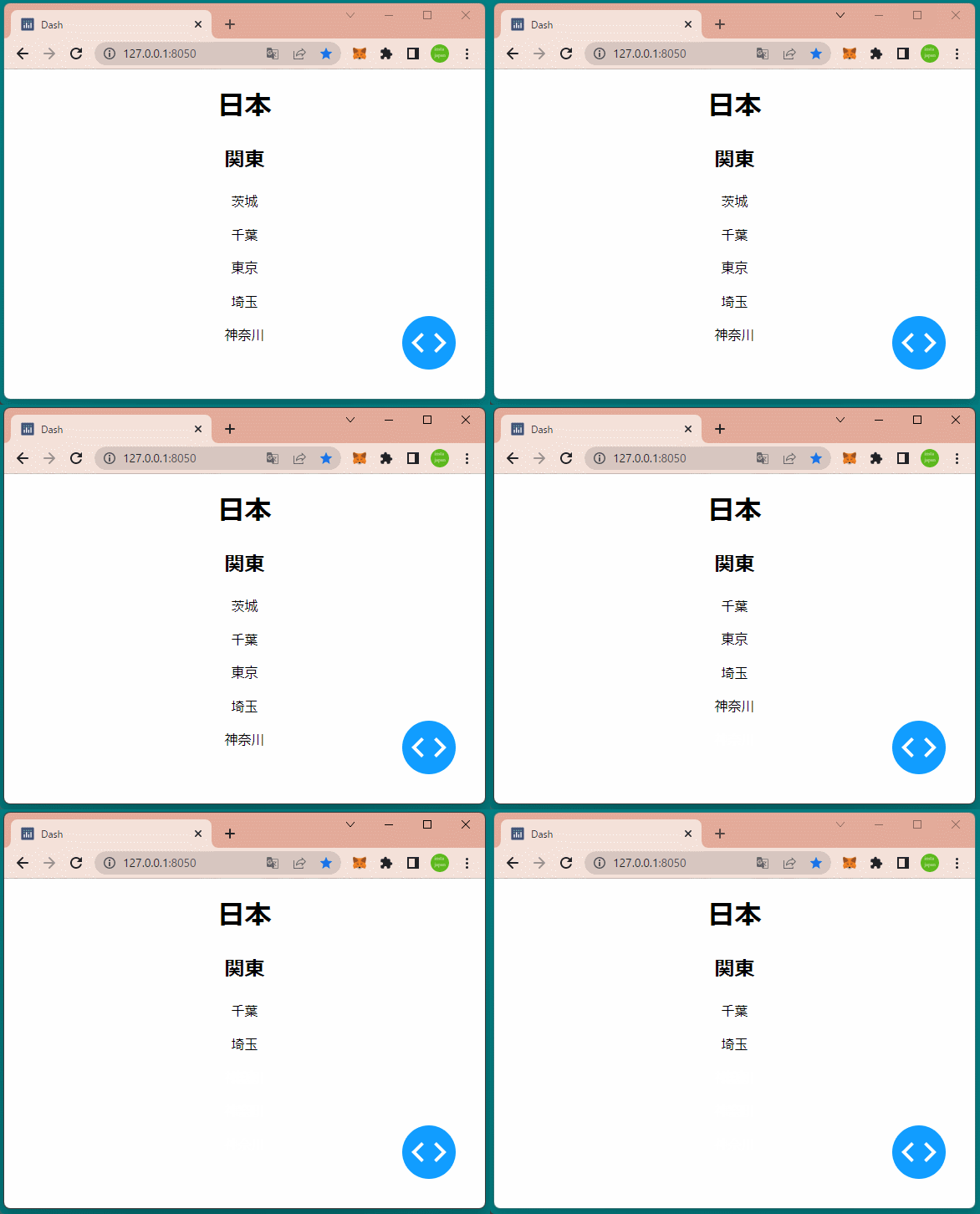
今回はコンポーネントのクリック回数を数えるn_clicks属性と表示/非表示を切り替えるhidden属性を使って、文字列をクリックするとその文字列コンポーネントを非表示にするアプリケーションを作成してみます。

[ソースコード]

1
2
3
4
5
6
7
8
9
10
11
12
13
14
15
16
17
18
19
20
21
22
23
24
25
26
27
28
29
30
31
32
33
import json

import dash
import dash_html_components as html
from dash.dependencies import Input, Output

app = dash.Dash(__name__) # Dashインスタンスを生成

app.layout = html.Div(
[
html.H1('日本'),
html.H2('関東'),
html.P('茨城', n_clicks=0, id='p1'),
html.P('千葉', n_clicks=0, id='p2'),
html.P('東京', n_clicks=0, id='p3'),
html.P('埼玉', n_clicks=0, id='p4'),
html.P('神奈川', n_clicks=0, id='p5')
],
style={'textAlign':'center'}
)

for id in ['p1', 'p2', 'p3', 'p4', 'p5']:
# コールバック
@app.callback(
Output(id, 'hidden'),
Input(id, 'n_clicks')
)
def text_hide(n_clicks):
if n_clicks % 2 == 1:
return True

if __name__ == '__main__':
app.run_server(debug=True) # アプリケーションを起動

コールバック関数では、コンポーネントをクリックするとhidden属性にTrueが設定され、そのコンポーネントが非表示になるように設定しています。

[ブラウザで表示]

文字列をクリックすると、その文字列が非表示になることが確認できます。